Shipping
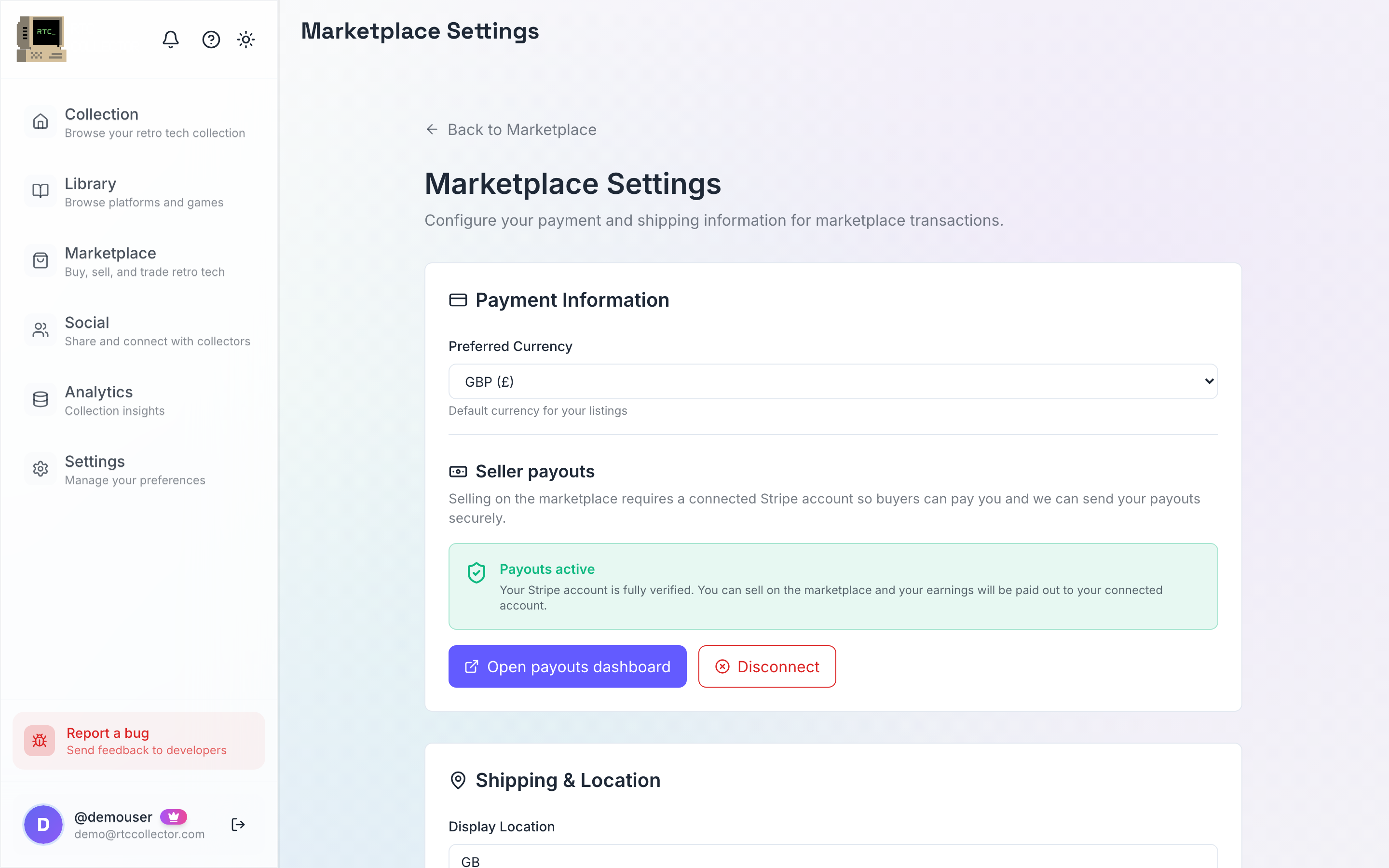
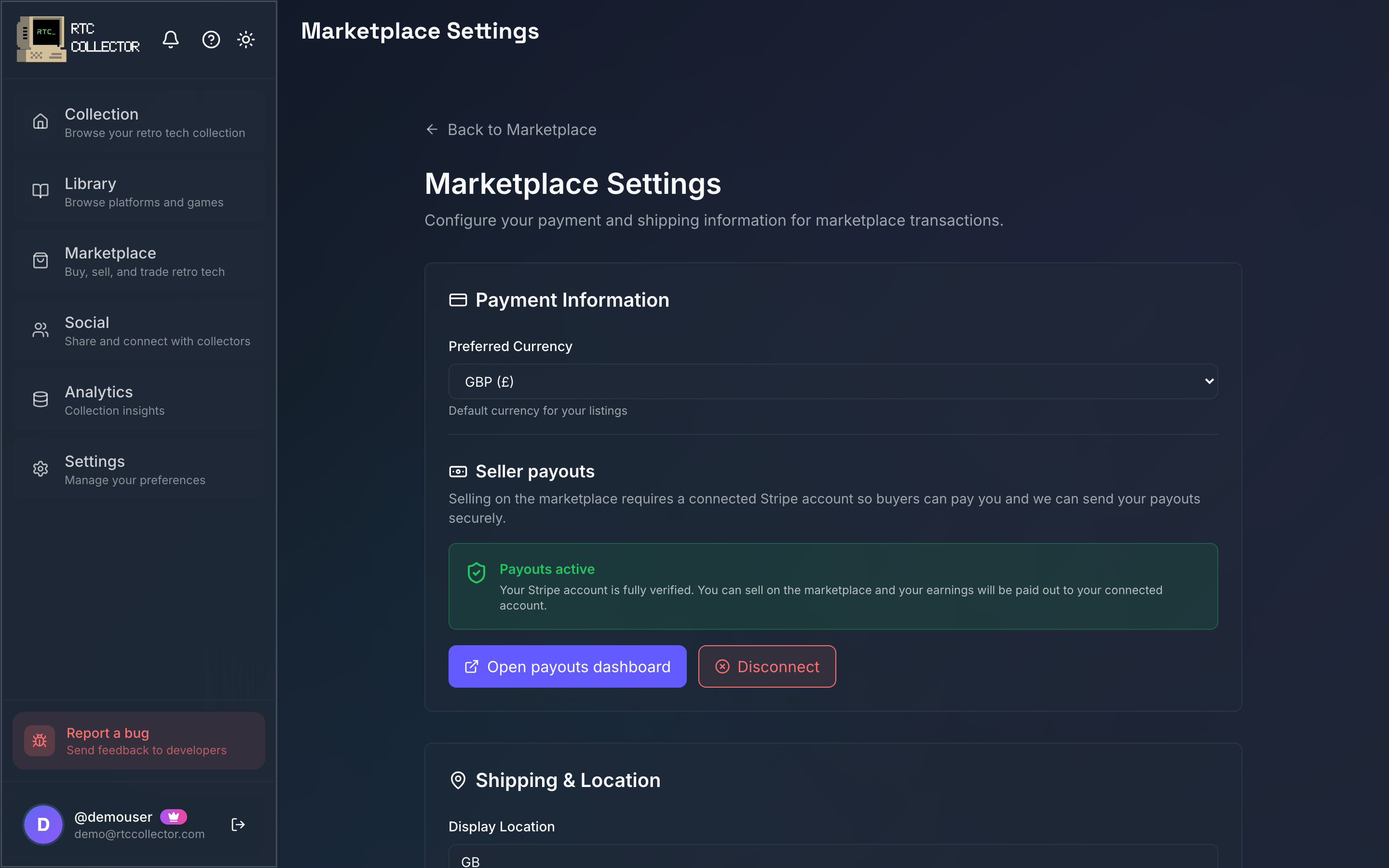
Once a sale is confirmed, RetroTechCollector helps you get the item to the buyer through Shippo: compare carrier rates, buy a label (or go printerless), and share tracking automatically. This page covers rates, labels, printerless drop-off, parcel templates, customs and returns.
How shipping fits the sale
Shipping happens after the buyer has paid and the order is confirmed. Buying a label — or marking a printerless drop-off — is how you take the order to shipped, which is when the buyer can start following tracking.
Buyer Protection holds the payment until the item is delivered and receipt is confirmed, so tracking matters: it's the record that shows the parcel is on its way and, once delivered, clears the way for your payout. For the buyer's side, see buying; for connecting payouts, see selling.
Rates and buying a label
Labels are powered by Shippo, which compares carrier rates for your parcel and route and prints a label you attach.
- Open the order and go to the Shipping step.
- Confirm the parcel's size and weight — pick an S / M / L quick size, a saved template, or enter dimensions.
- Review the carrier rates for that parcel and destination.
- Select a rate and buy the label.
- Attach the label and hand the parcel to the carrier.
The S / M / L quick sizes cover the most common parcels so you don't have to measure every time, and the rates update the moment you switch size.
Printerless and drop-off first
You don't need a printer. Shippo supports printerless labels — you get a QR code and hand the parcel in at a carrier drop-off point, where they scan it and print the label for you. RetroTechCollector puts the printerless / drop-off option first, so no-printer shipping is the default rather than a workaround.
Domestic and international
Where the parcel is going decides which details you need.
| Route | What you provide |
|---|---|
| Domestic | Parcel size and weight; buy a tracked label |
| International | Parcel size and weight plus customs details — an accurate contents description and value |
International parcels need customs information so they clear the border. Give an honest description and value — under-declaring to reduce duty can leave the parcel uninsured for its true worth and hold it up in customs.
The buyer's country may charge import duty or tax on arrival. Make the destination and any likely charges clear in the listing so there are no surprises.
Parcel templates
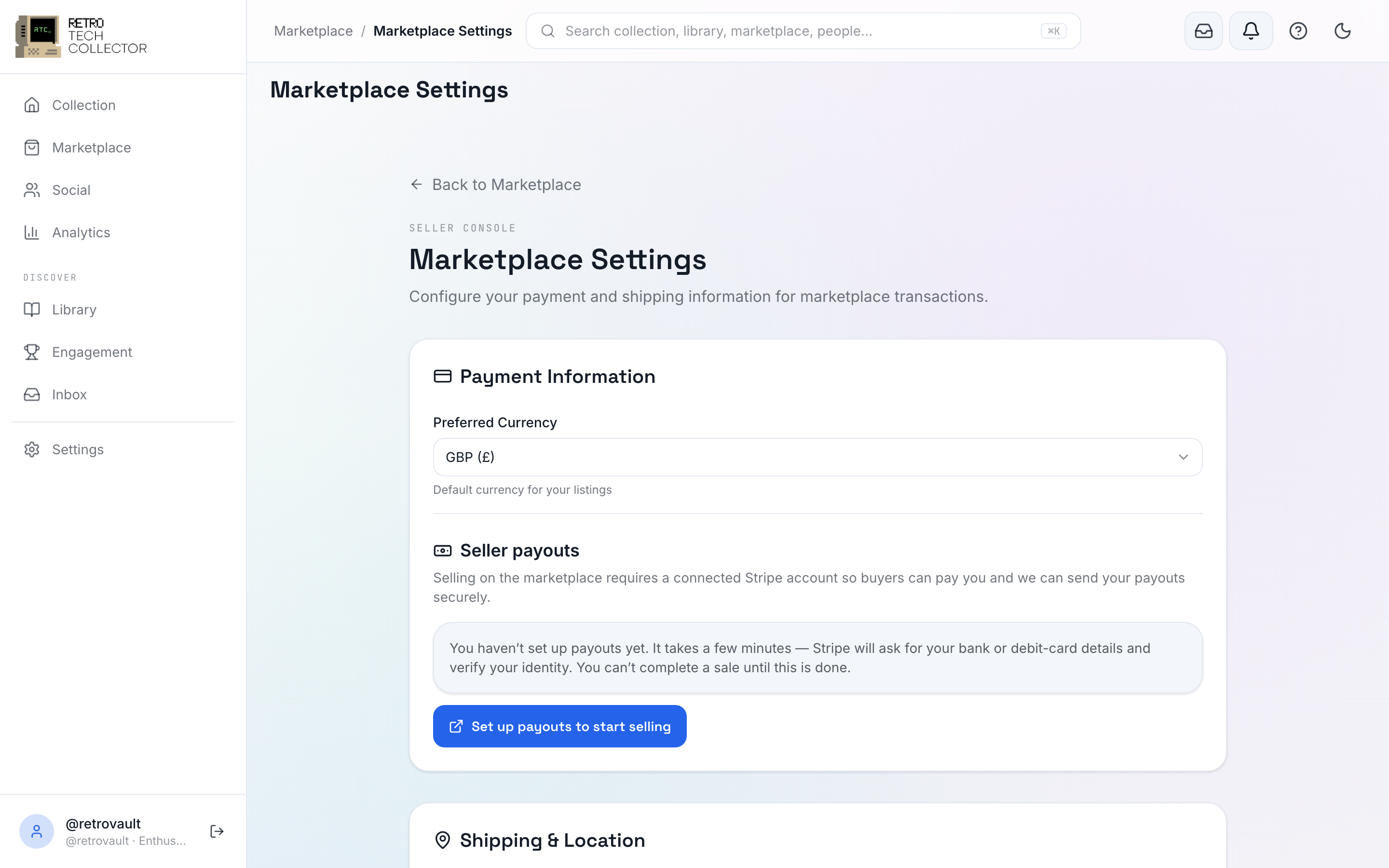
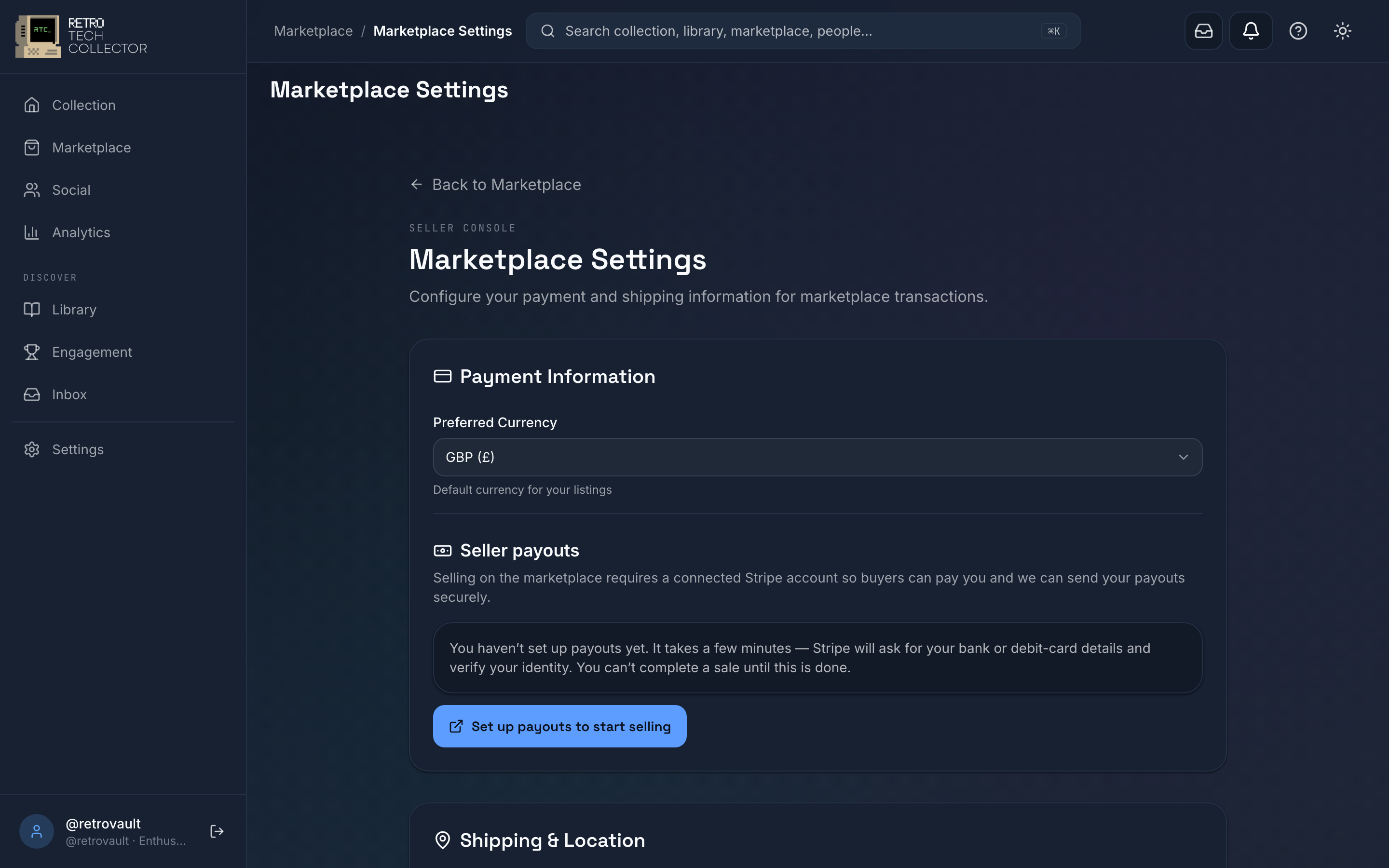
If you post similar items often, save the box once and reuse it. A parcel template stores a set of dimensions and a weight so you don't re-enter them for every sale.
- Open Parcel templates from your shipping settings.
- Tap New template and give it a name (for example, "Boxed console").
- Enter the length, width, height and weight.
- Save it.
Next time you ship, pick the template instead of typing the parcel details, and the rates update for that size straight away.
Carriers and tracking
Shippo surfaces rates from the available carriers for your parcel and route, so you can choose on price and speed. After you buy a label, the tracking number is stored on the order and updates flow through to the buyer automatically — there's nothing to copy and paste. You and the buyer both see the status update as the parcel moves toward delivery.
Pickups and returns
For heavier or bulk parcels you can arrange a carrier pickup through Shippo instead of dropping off. If an order needs to come back, generate a return label the same way you bought the outgoing one, so the buyer has a tracked route to send the item back.