Adding items
The Add screen is where every item enters your collection. Snap a photo and let AI recognise it, scan its barcode, search the catalogue, or fill in a category by hand — whichever is quickest for what's in front of you.


The four-method Add picker
Open Add and you're asked "How would you like to add it?", with four routes in this order:
- Snap a photo — AI recognises the item from a photo and pre-fills the details.
- Scan a barcode — an EAN/UPC lookup against the master catalogue.
- Search catalogue — find it in the 120,000+ master library.
- Enter manually — pick a category and fill in the form.
Below those, more ways to capture gives you Guided capture (walks you through multi-angle photos) and Shelf scan (one photo of a shelf, many items detected at once).
Whichever route you take, you land on the same item form before saving, so you can always review and adjust what's been filled in.
Categories
Every item belongs to one of six categories: Computer, Console, Handheld, Game, Accessory or Other.
Snap a photo
This is the fastest way to add something loose. Take a photo, AI recognises the item, and the form comes back pre-filled — no typing.


- Open Add → Snap a photo.
- Take a photo of the item, or pick one from your library.
- AI recognises it and matches it to a catalogue entry, pre-filling the category and details.
- Review what it found, adjust anything that's off, and save.
For a known game or boxed item, a barcode scan is usually quicker; for loose hardware without a label, a photo is the easier path.
The number of AI photo identifications you can run each month depends on your plan: 2 on Hobbyist, 30 on Collector, 100 on Enthusiast. AI condition grades are separate (0 / 10 / 50 a month). Quotas reset at the start of each calendar month. Reach your quota and you can still add the item by scanning its barcode, searching the catalogue, or entering it manually. See Plans & billing.
Scan a barcode
For games and boxed items with a barcode, scanning is the quickest match — and it's unlimited on every plan.
- Open Add → Scan a barcode.
- Line the barcode up in the camera frame.
- When it matches the master catalogue, the item form opens pre-filled.
- Check the details and save.
Search the catalogue
If you'd rather find the item by name, choose Search catalogue. As you type, matching entries from the 120,000+ master library appear; choose one and its specs drop straight into the form. Catalogue search is unlimited. To browse the catalogue itself rather than autofill, see The Library.
Enter an item manually
When something isn't in the catalogue — or you just prefer typing — choose Enter manually. Manual add is a three-step wizard:
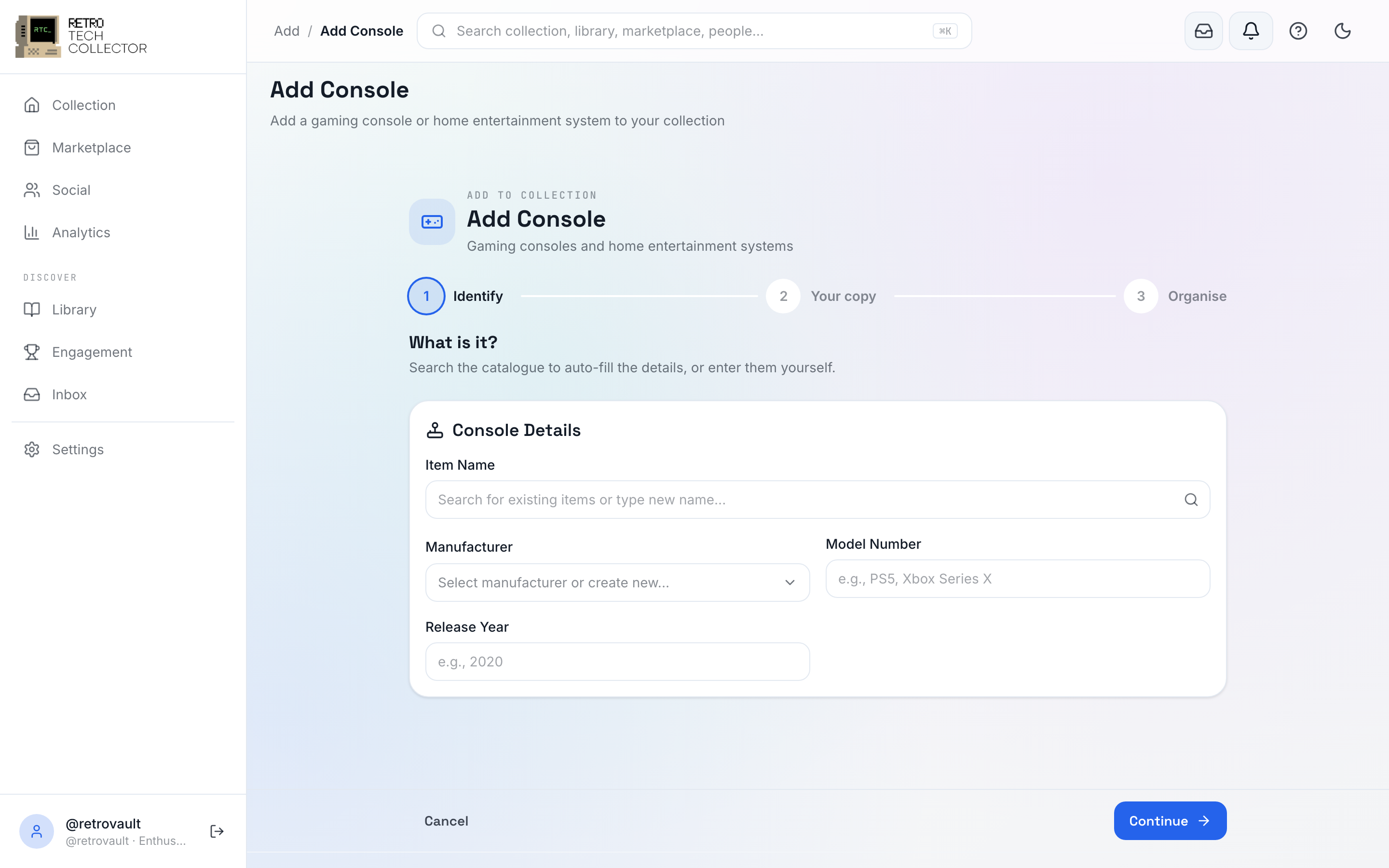

- Identify — pick a category and start typing the name to autofill from the catalogue; a variant picker helps you land on the exact edition, and duplicate detection warns you if it's already in your collection.
- Your copy — set condition, any professional grade (PSA / WATA / CGC), serial number, purchase price and date, and current value.
- Organise — add photos, a storage location, notes, maintenance tasks and related items.
What you can record
Each item can hold as much or as little detail as you want:
| Field | What it captures |
|---|---|
| Category | Computer, Console, Handheld, Game, Accessory or Other |
| Condition & grade | Condition, plus a professional grade (PSA / WATA / CGC) |
| Serial number | The item's serial, where it has one |
| Purchase price & date | What you paid and when |
| Current value | Tracked in your chosen currency |
| Photos | Multiple photos per item |
| Storage location | Where the item lives in your collection |
| Notes & maintenance | Free-text notes and maintenance tasks |
| Related items | Links to consoles, games, peripherals and bundles |
Save with just the essentials now and fill in condition, value or photos later. For more on organising what you've added, see Managing your collection.
Adding on mobile
On Android, iOS and the mobile web app, Add (+) sits in the centre of the five-tab bottom bar, so the camera, barcode scanner and AI recognition are always one tap away.


The flow is the same as on the web. Snapping the photo directly with your phone's camera — and reaching for Guided capture or Shelf scan — is what makes adding on mobile so quick.
Where to next
- Managing your collection — categories, condition, value, storage and views once items are in.
- Photos — adding, reordering and managing item photos.
- The Library — the master catalogue you autofill from.
- Import & export — bring a collection in via CSV or JSON.