Managing your collection
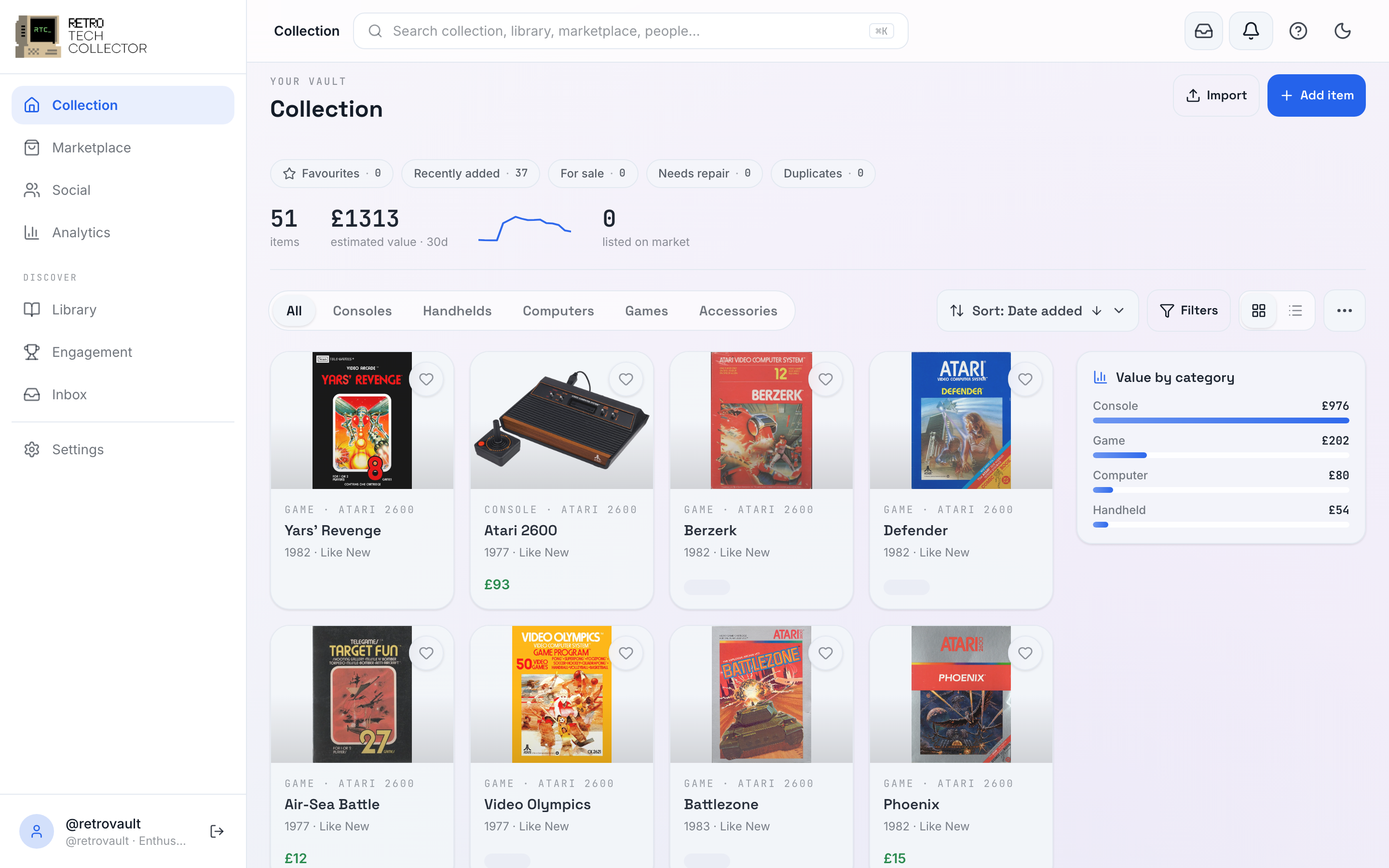
The collection page is the Vault Dashboard: your numbers up top, your items below, and everything filterable with a tap. This page walks through the cockpit — how to read it, and how to find any item fast once you have hundreds.
The stats rail
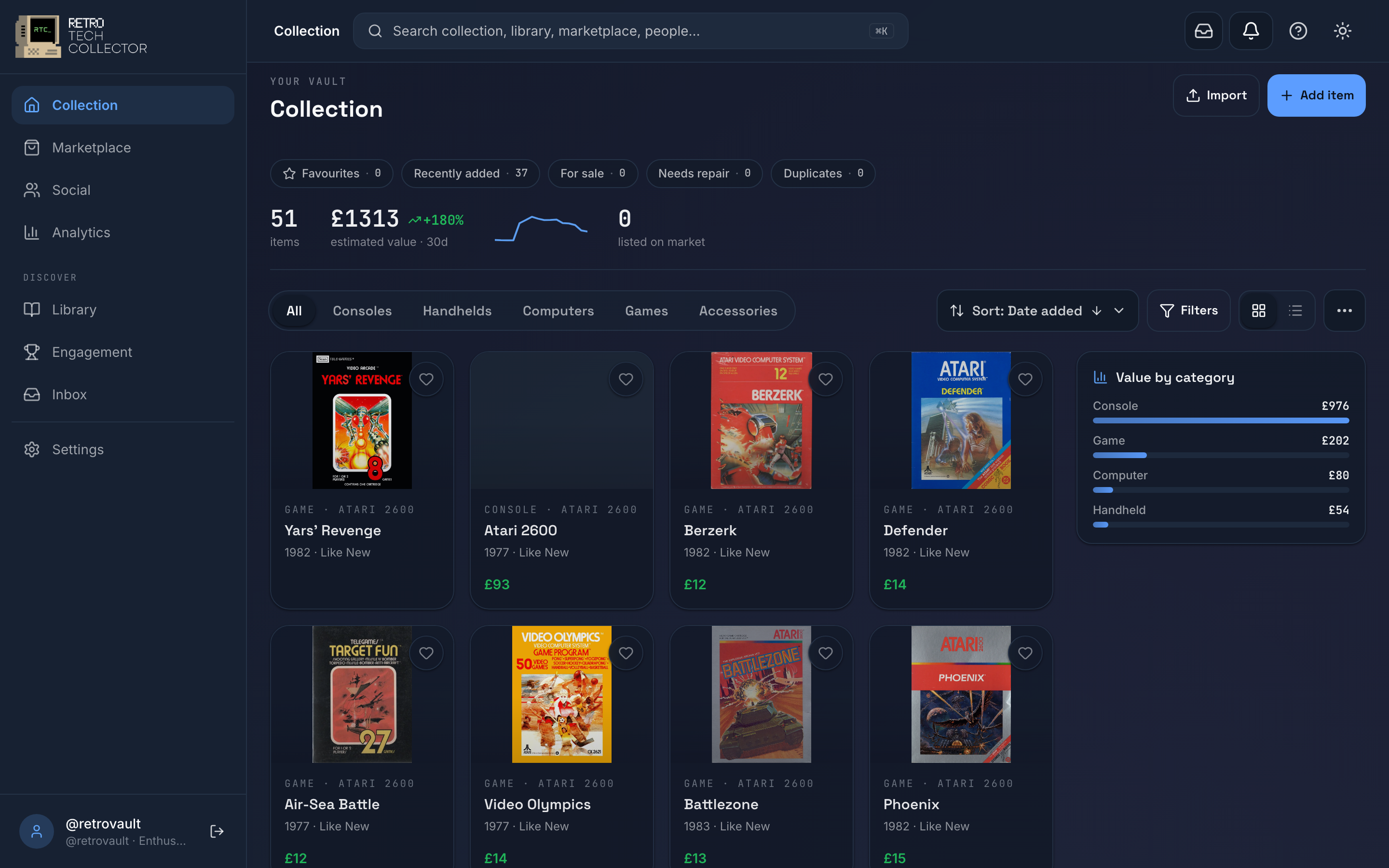
Across the top sits a stats rail that summarises your collection at a glance:
- Item count — how many items you're tracking.
- Estimated value — your total, with the change since last time and a sparkline of the recent trend.
- Listed — how many of your items are currently up for sale.
For deeper breakdowns and value over time, head to Analytics.
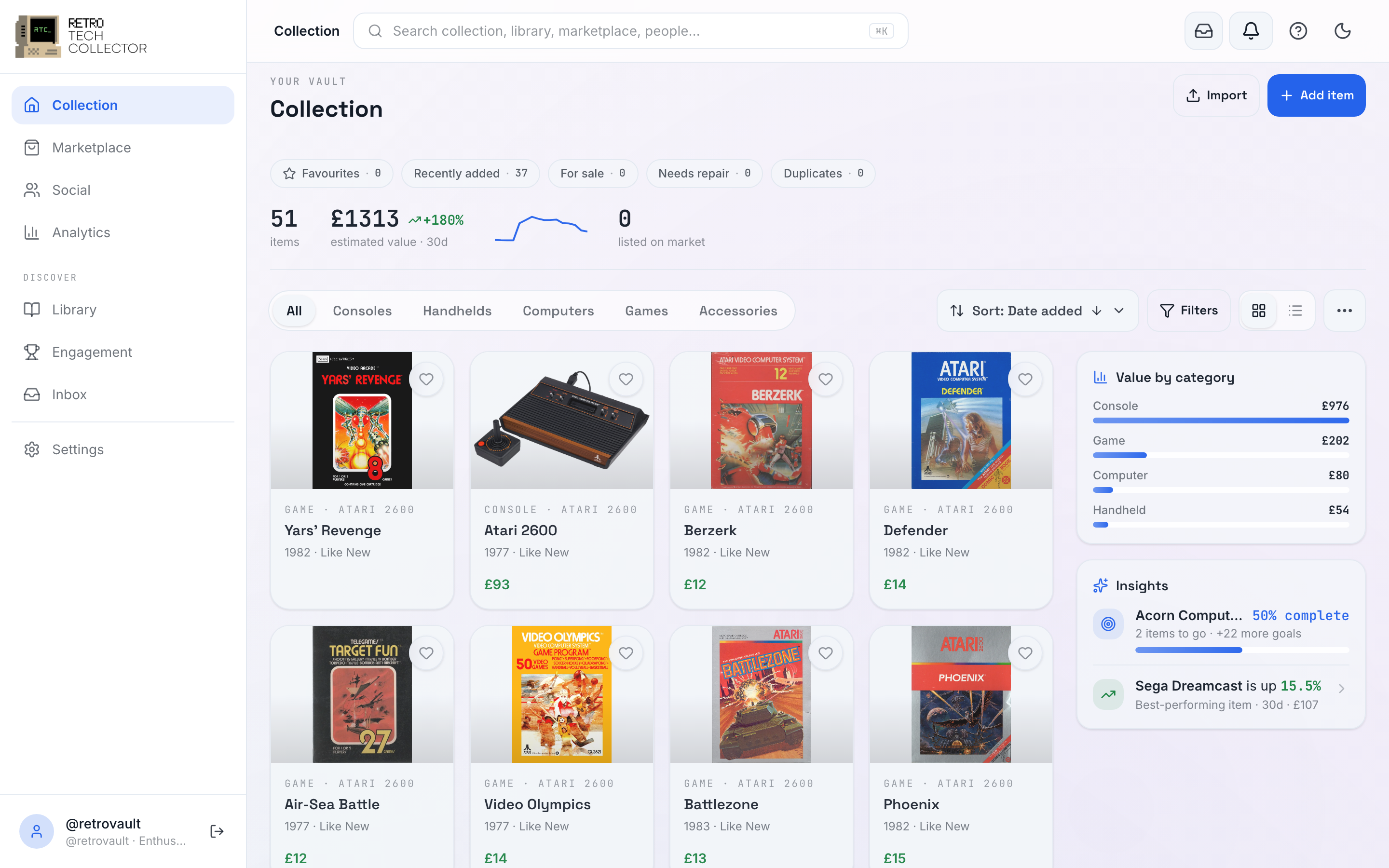
The insights rail — click to filter
Below the stats sits a sticky insights rail that doubles as a set of filters. Instead of just reading a chart, you tap it and the grid narrows:
- Value by category — tap a category to show only those items.
- Needs maintenance — jump straight to items with an open maintenance task.
The rail stays pinned as you scroll, so you can keep slicing the collection without losing your place. Tap the same insight again to clear the filter.
Views, categories and finding things
Switch between a grid view (photo-first, great for browsing) and a list view (denser, great for scanning many items at once).


A category segmented control flips between Computer, Console, Handheld, Game, Accessory and Other. Below it, quick-filter chips each carry a live count so you can see how many match before you tap:
- Favourites
- Recently added
- For sale
- Needs repair
- Duplicates
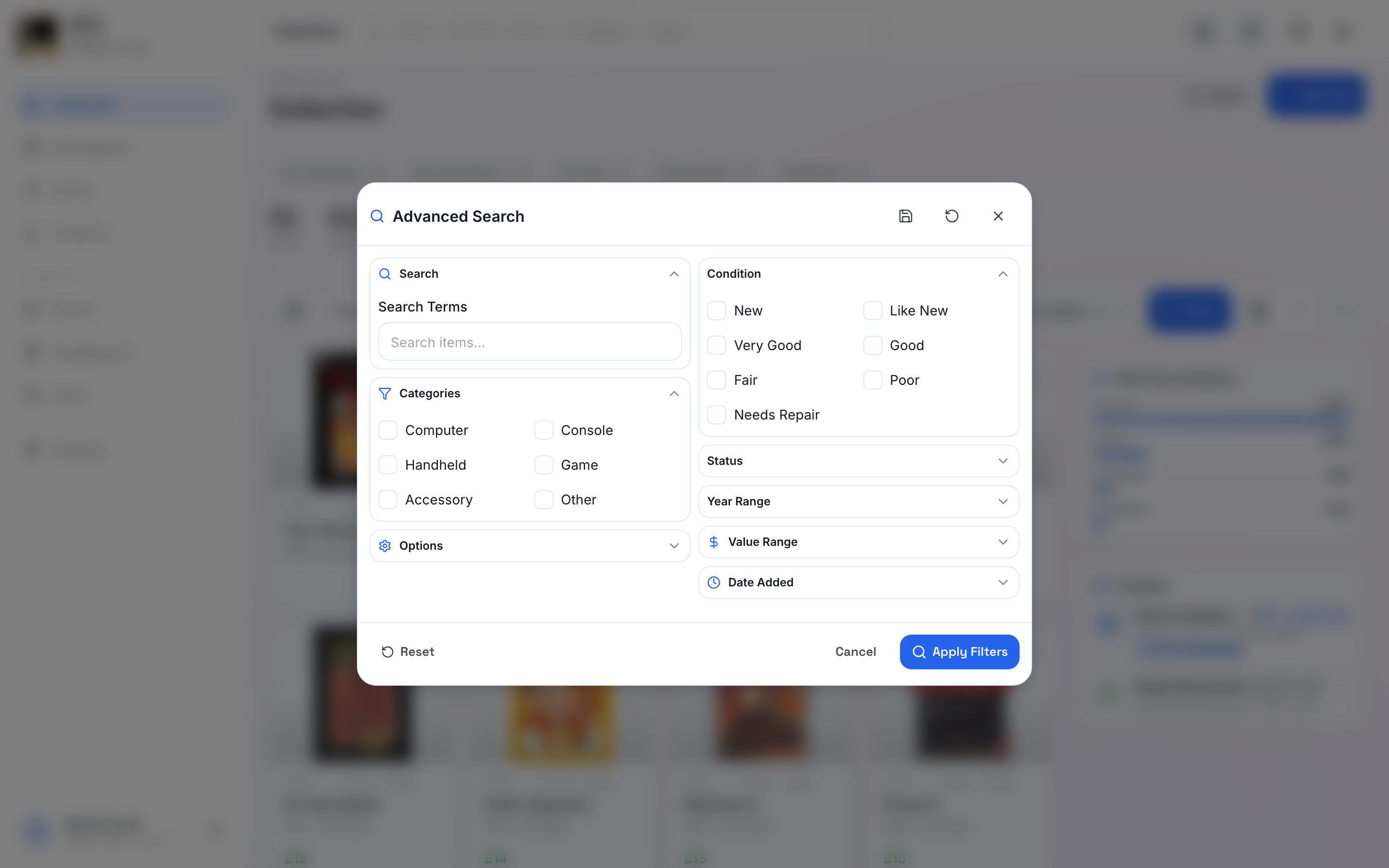
For anything more specific, open Advanced Search to combine category, condition, manufacturer, storage location, year and more. Sort orders the grid by date added, last updated, name, year, status, manufacturer or market value.

Condition and professional grading
Each item records a condition, so you can tell a boxed mint console from a loose, well-loved one at a glance. For graded items you can also record a professional grade from PSA, WATA or CGC — useful for sealed games and high-value pieces where the grade is the price.
Alongside condition you can store a serial number, notes, maintenance tasks and related items (see Item relationships).
Value, cost and currency
For each item you can record what you paid — the purchase price and purchase date — and track its current value over time. Values come from real sale data and PriceCharting; see Price tracking for how that works. Values display in your chosen currency, with multi-currency display on every plan.
Recording a purchase price and seeing an item's value works on any plan. Portfolio analytics — value over time, breakdowns by category and condition, and top movers — needs a Collector or Enthusiast plan. See Plans and billing.
Storage locations
Assign each item a storage location so you always know where it physically lives — a shelf, a box, a room. Hobbyist gives you 3 storage locations; Collector and Enthusiast give you unlimited.
Sets and Goals
A slim Sets & Goals completion strip tracks how close you are to finishing the sets you care about — a full console library, every handheld in a range, or a goal you've set yourself. It's a quick way to see what's still missing.

Hidden items and your plan limit
Each plan caps how many items count towards your collection:
| Plan | Item limit |
|---|---|
| Hobbyist | 50 |
| Collector | 150 |
| Enthusiast | Unlimited |
When you go over your plan's limit, the extra items become hidden items. They're kept, not deleted — your data is safe. They simply don't count and don't show in your main collection until you free up space or upgrade. Move to a higher plan and hidden items come straight back into view.
Either remove items to get back under your limit, or move to a plan with a higher cap. Enthusiast removes the cap entirely. See Plans and billing.
Bulk actions
On the Enthusiast plan you can select several items at once and act on them together — a fast way to re-tag, re-locate or tidy up a large collection without opening each item. Lower plans edit items one at a time.
Import, export and share
From the dashboard you can bring data in, take it back out, or share a slice of your collection publicly:
- Import — load a collection from CSV or JSON (any plan).
- Export — download your collection as CSV or JSON (Collector and above).
- Share — publish a public link to an item's provenance passport.
See Import and export for the full flow, and Selling on the marketplace when you're ready to move something on.