Item relationships
Relationships connect the items in your collection that belong together — a console and the games you play on it, a peripheral and the machine it plugs into, or everything that came in one bundle. The links are two-way, so you can jump between connected items from either side.
What relationships are
A relationship is a link between two items you already have in your collection. It records how they relate to each other without duplicating anything — both items stay separate entries, each with their own condition, value, photos and notes.
Links are useful when you want to see what goes with what: which games belong to a console, which controller is the spare for which handheld, or which pieces made up a single purchase.
The relationship types
There are five ways to link items. Pick the one that matches how the items actually relate.
| Type | Use it for | Example |
|---|---|---|
| Game | Tying a game to the system it runs on | Super Mario World linked to your SNES |
| Peripheral | Tying an accessory to the machine it connects to | A light gun linked to your Mega Drive |
| Accessory | A compatible add-on for another item | A memory card linked to your PS1 |
| Bundle | Items bought, sold or kept together as one lot | A console, two controllers and five games from one auction |
| Related | A general link — compatible-with, or a replacement part | A recapped power supply linked to the console it belongs to |
How to link items
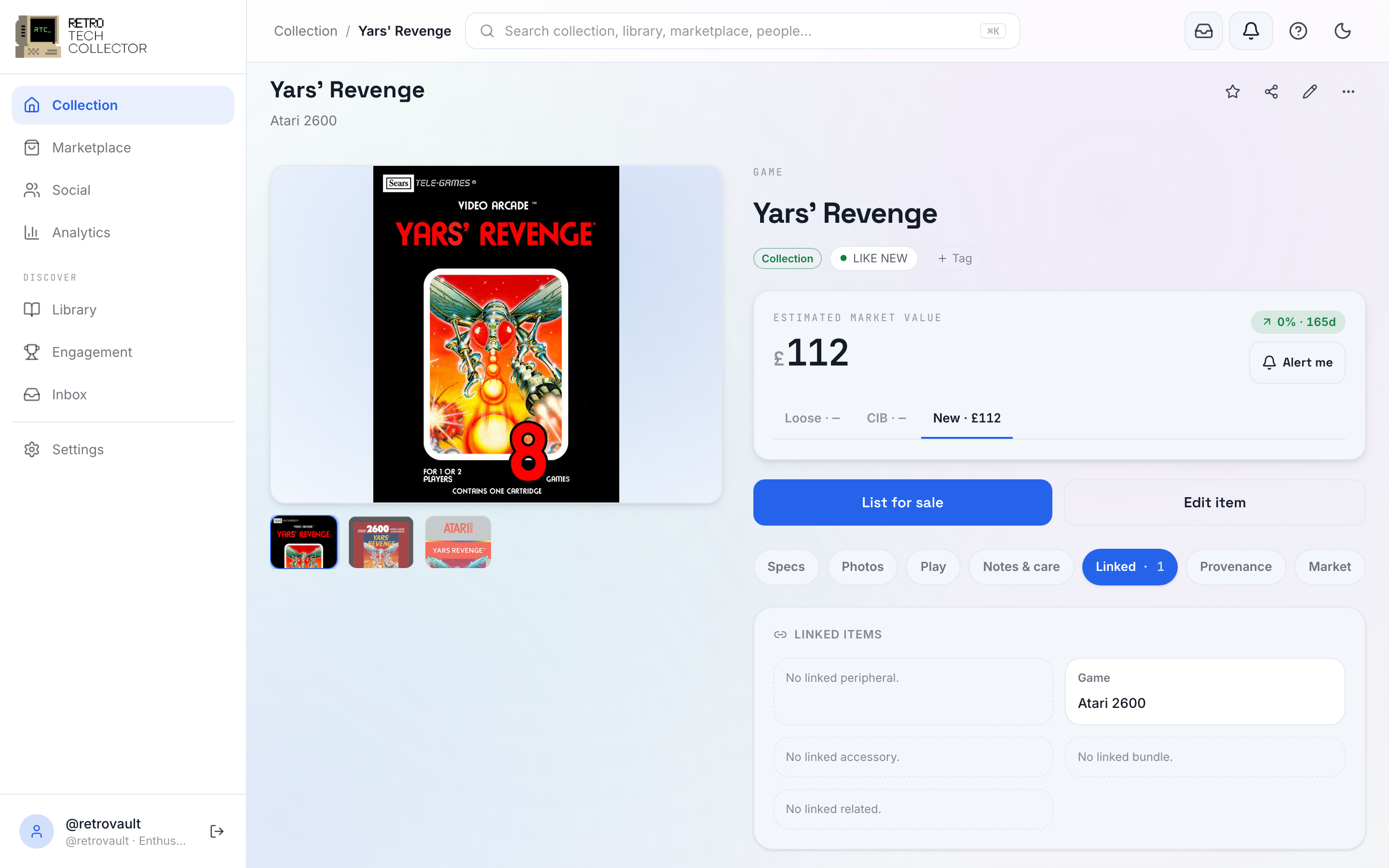
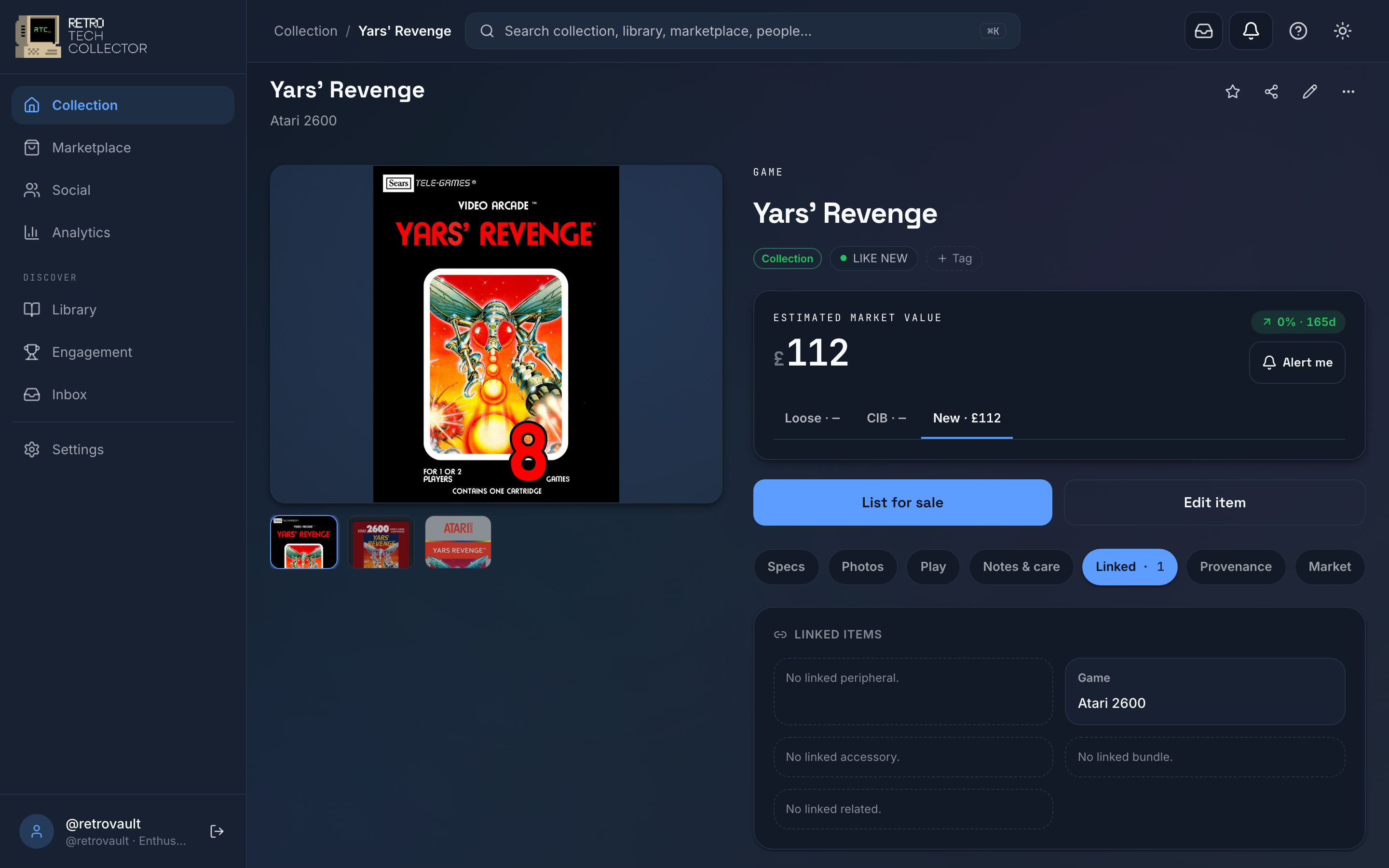
Linked items live in the Linked panel of the item detail card-deck — the pill row that swaps one panel at a time.
- Open the item you want to start from and tap Linked in the card-deck.
- Tap Add relationship.
- Choose the relationship type (peripheral, game, accessory, bundle or related).
- Search your collection and select the item to link.
- Save. The link appears on both items straight away.
You can only relate items you already own. Add the console, game or accessory to your collection first, then link them — there's no need to re-enter any of their details.
To remove a link, open the Linked panel on either item and remove the relationship there. Removing a link never deletes the items themselves.
How relationships appear
Linked items show up in the Linked panel of each item's card-deck, grouped by type. Each one is tappable, so you can move from a console straight to one of its games, or from a peripheral to its host machine, and back again.
Because relationships are two-way, you only ever need to create a link once — it shows on both items automatically.
Related pages
- Managing your collection — categories, condition, value and storage for each item.
- Photos — add and organise multiple photos per item.
- Selling — list a bundle or a single item on the marketplace.