Photos
Good photos make your catalogue easier to browse, more useful for valuation, and ready to list on the marketplace. Each item holds several photos in a reorderable gallery, and the very first one can come straight from the AI add flow.
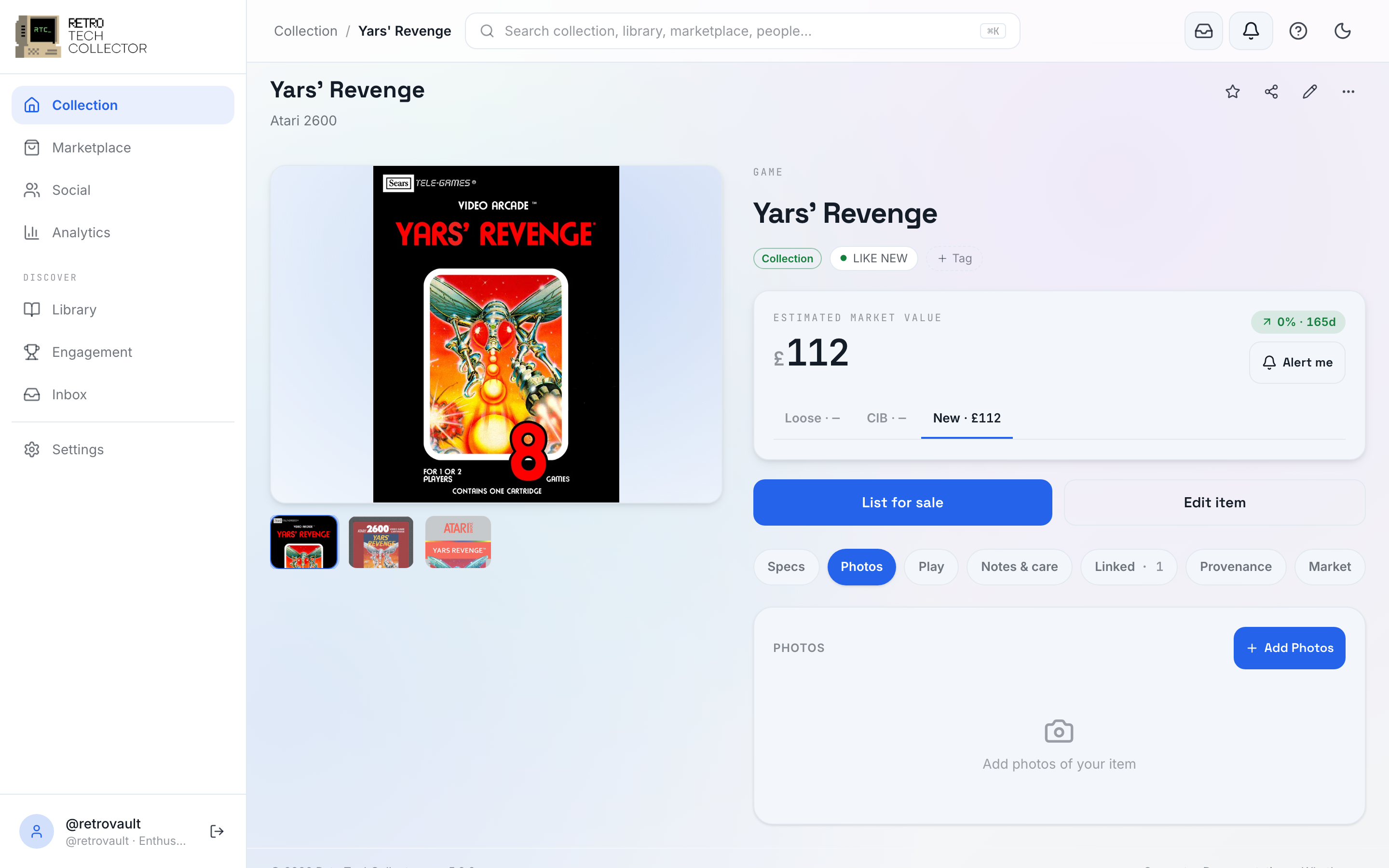
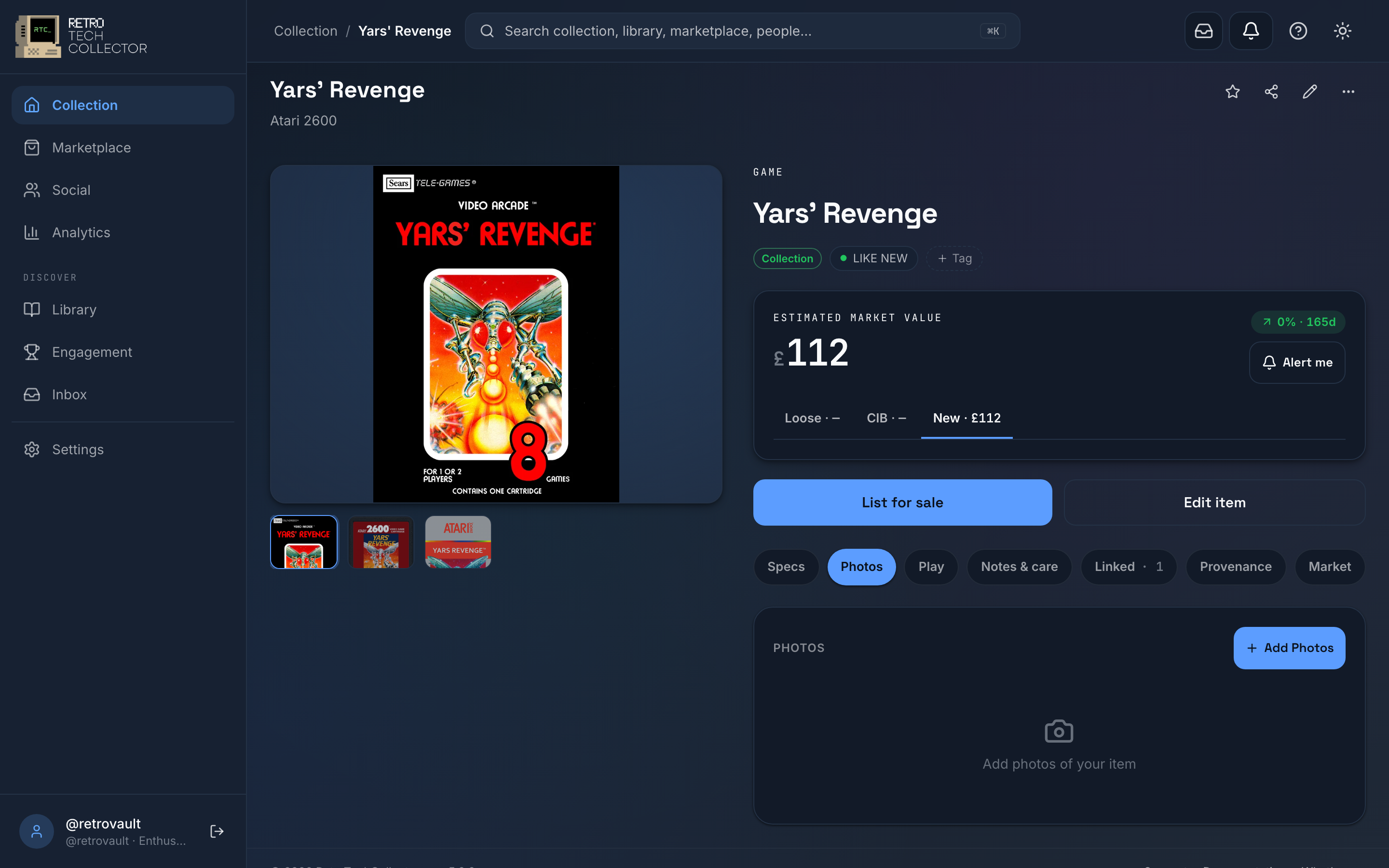
Where photos live
Open any item and its detail page shows a hero valuation card above a card-deck — a row of pills that swaps one panel at a time. Tap Photos to see the item's gallery. (The card-deck also holds Specs, Play, Notes & care, Linked, Provenance and Market — see Managing your collection for the wider picture.)
Adding photos
You can add photos when you first create an item or any time afterwards from its Photos panel.
- Open the item and tap Photos in the card-deck.
- Tap Add photo.
- Choose Take photo to use your camera, or Upload to pick from your device.
- Repeat to add more, up to your plan's limit.
On a phone the camera opens directly, so you can photograph the item, the box and any serial numbers in one go.
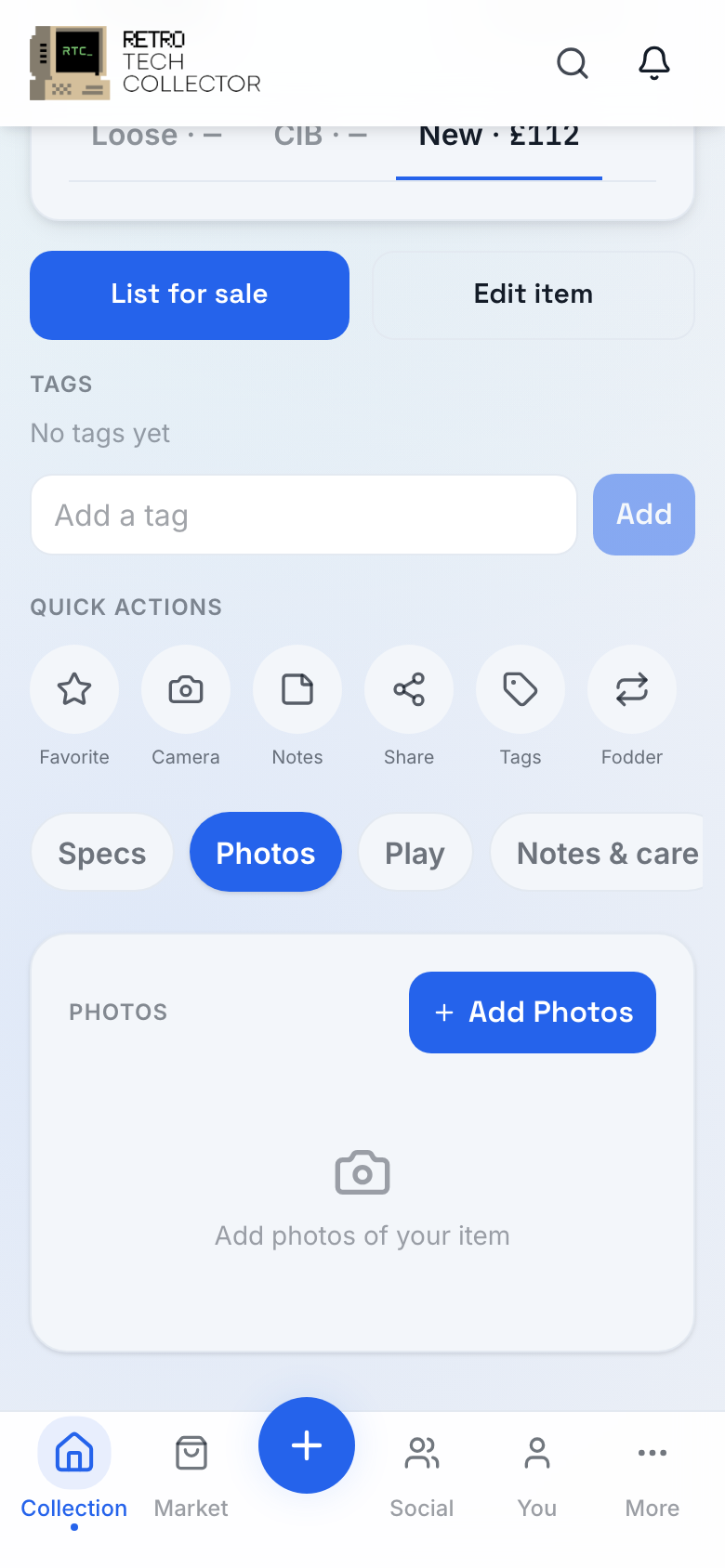
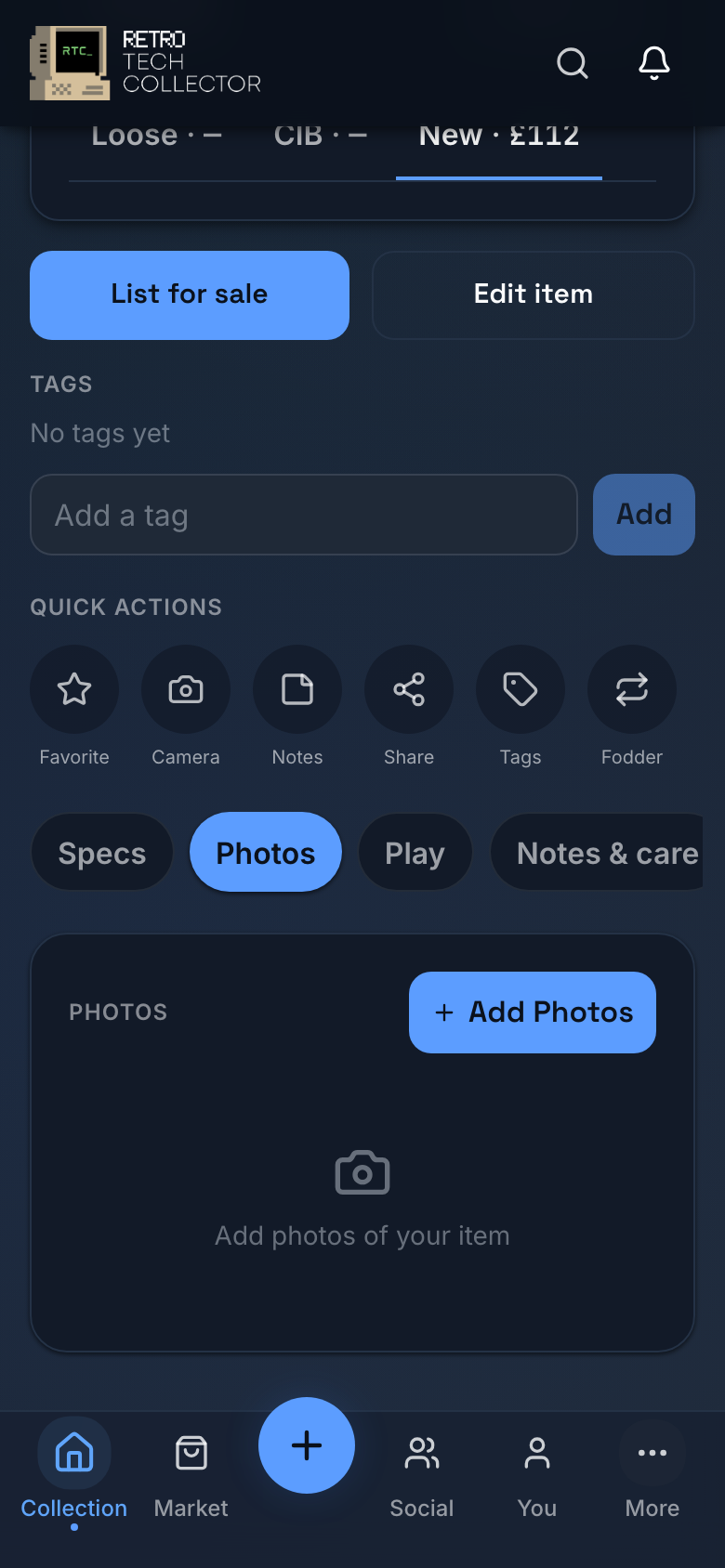
How many photos you get
The number of photos per item depends on your plan.
| Plan | Photos per item |
|---|---|
| Hobbyist | 3 |
| Collector | 10 |
| Enthusiast | Unlimited |
If you reach the limit on an item, remove a photo to make room or upgrade your plan. See Plans and billing for what each tier includes.
The gallery and reordering
The first photo is the cover image — it's what shows on your Vault Dashboard grid, in search results and on any marketplace listing.
To change the cover or the order, drag a photo to a new position in the gallery. To remove one, open it and choose delete. Reordering only affects how the item displays; it doesn't change anything else about the item.
Put your best straight-on photo first. It's the image collectors see across your collection and on the marketplace, so a clean, well-lit shot helps your items stand out and sell. See Selling for more on listing photos.
Using a photo for AI identification
If you add an item with Add → Snap a photo, the photo you take is recognised and used to pre-fill the item's details — and it becomes the item's first photo automatically. So a single tap both catalogues the item and starts its gallery.
Snap a photo is tier-quota'd — Hobbyist gets 2 AI identifications a month, Collector 30 and Enthusiast 100, resetting at the start of each month. For the full add flow — barcode, catalogue search, AI and manual entry — see Adding items.