Quick start
From a standing start to your first catalogued item in about five minutes — create an account, add an item with a photo or a barcode, then have a look around your collection, the Library and analytics.
1. Create an account
You can start for free on the Hobbyist plan — no card needed.
- Open the app at retrotechcollector.app (or install the Android or iOS app).
- Choose Continue with Google, or enter an email and password and select Create account.
- Pick a username — this is how other collectors see you.
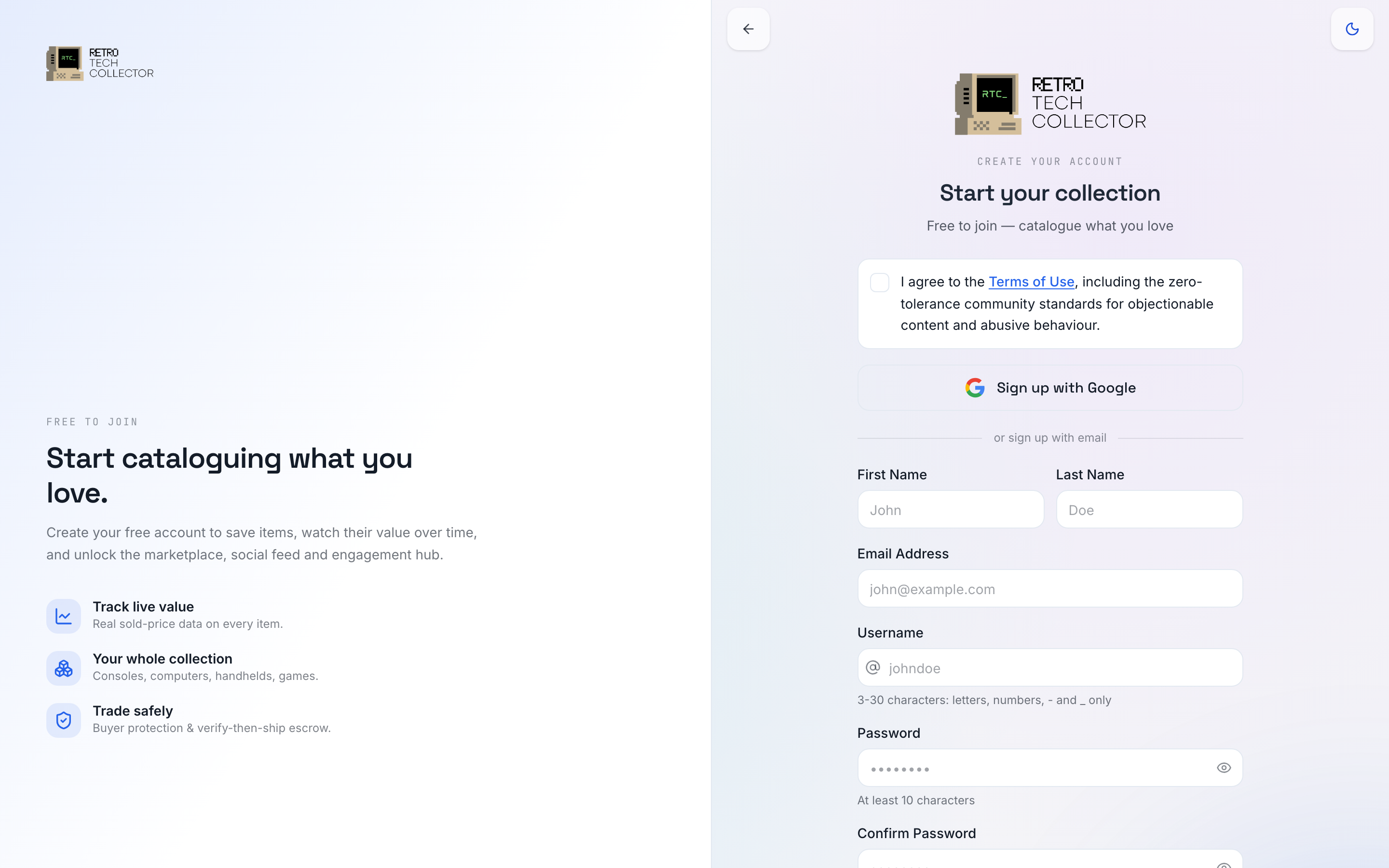
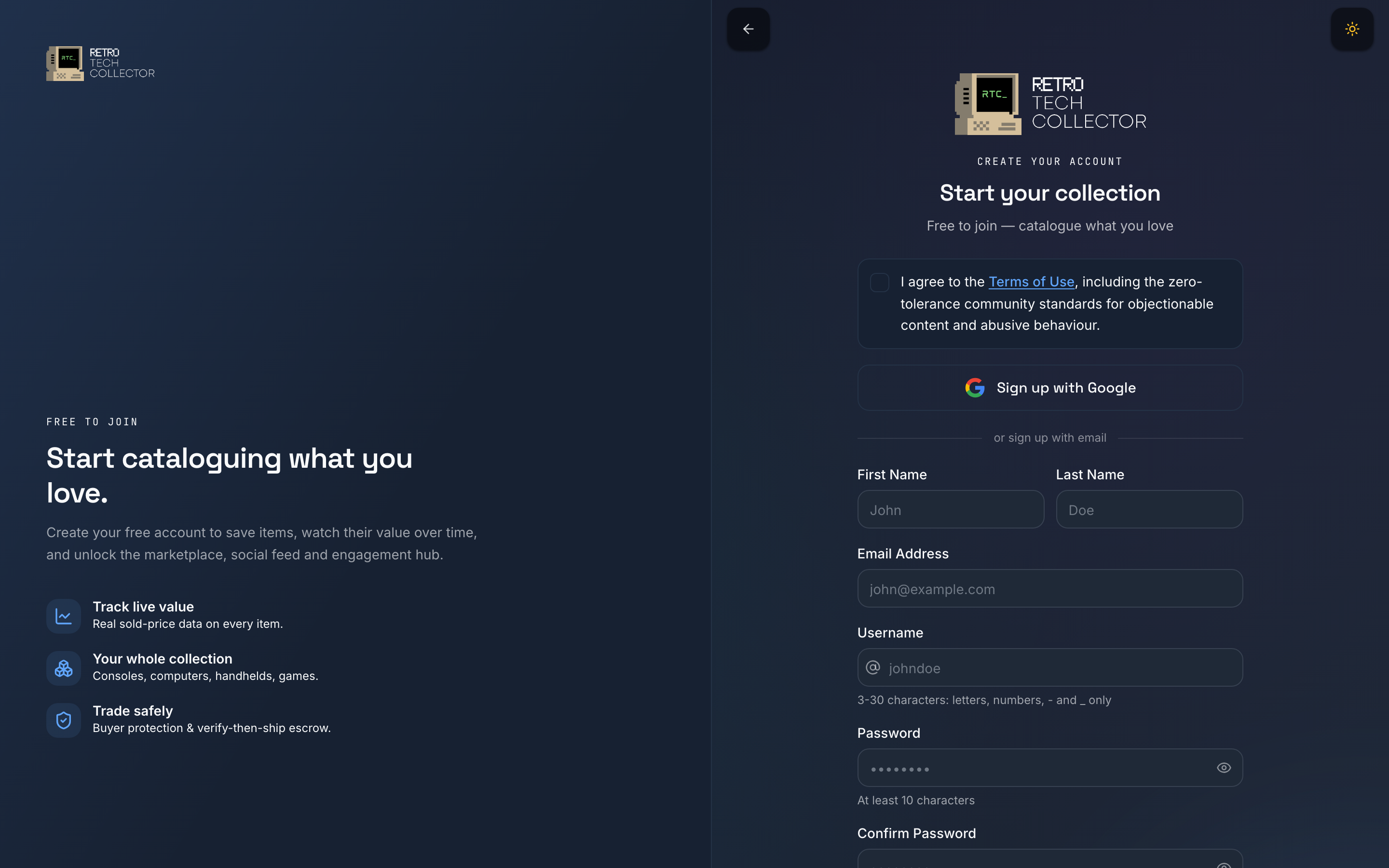
The Hobbyist plan covers up to 50 items, 3 photos per item, 3 storage locations, barcode and AI photo add, and browsing the whole app. Paid plans raise those limits and add live values, analytics, the social feed and lower selling fees — see Plans and billing when you're ready.
2. Verify your email
If you signed up with email and password, we send a verification link to your inbox. Open it and follow the link to confirm your address. Signing in with Google verifies you automatically.
Add 2FA and a passkey in settings so your collection stays yours. Full walkthrough on the Security page.
3. Add your first item
Tap Add and you'll see four ways to start: Snap a photo, Scan a barcode, Search catalogue or Enter manually. The quickest for a loose item with no box is a photo.
Snap a photo
- Tap Add → Snap a photo.
- Take a photo of the item (or pick one from your library).
- The app recognises it and pre-fills the details — check them over and save.


Or scan the barcode
Got the box? Tap Add → Scan a barcode, point your camera at the barcode, and the app matches it against the master catalogue and fills in what it can. Barcode scans and catalogue search are unlimited on every plan.
| Method | Best for | What you get |
|---|---|---|
| Snap a photo | Loose items, no box | A photo is recognised and details pre-filled (tier-quota'd) |
| Scan a barcode | Boxed games and hardware | A catalogue match from the barcode |
| Search catalogue | Anything you can name | Pick from 120,000+ master items, specs pre-filled |
| Enter manually | Anything else | Type it in; autofill from the catalogue as you go |
Categories are Computer, Console, Handheld, Game, Accessory and Other. For the full rundown of each method, see Adding items.
4. Look around
With an item saved, you've got something to explore.
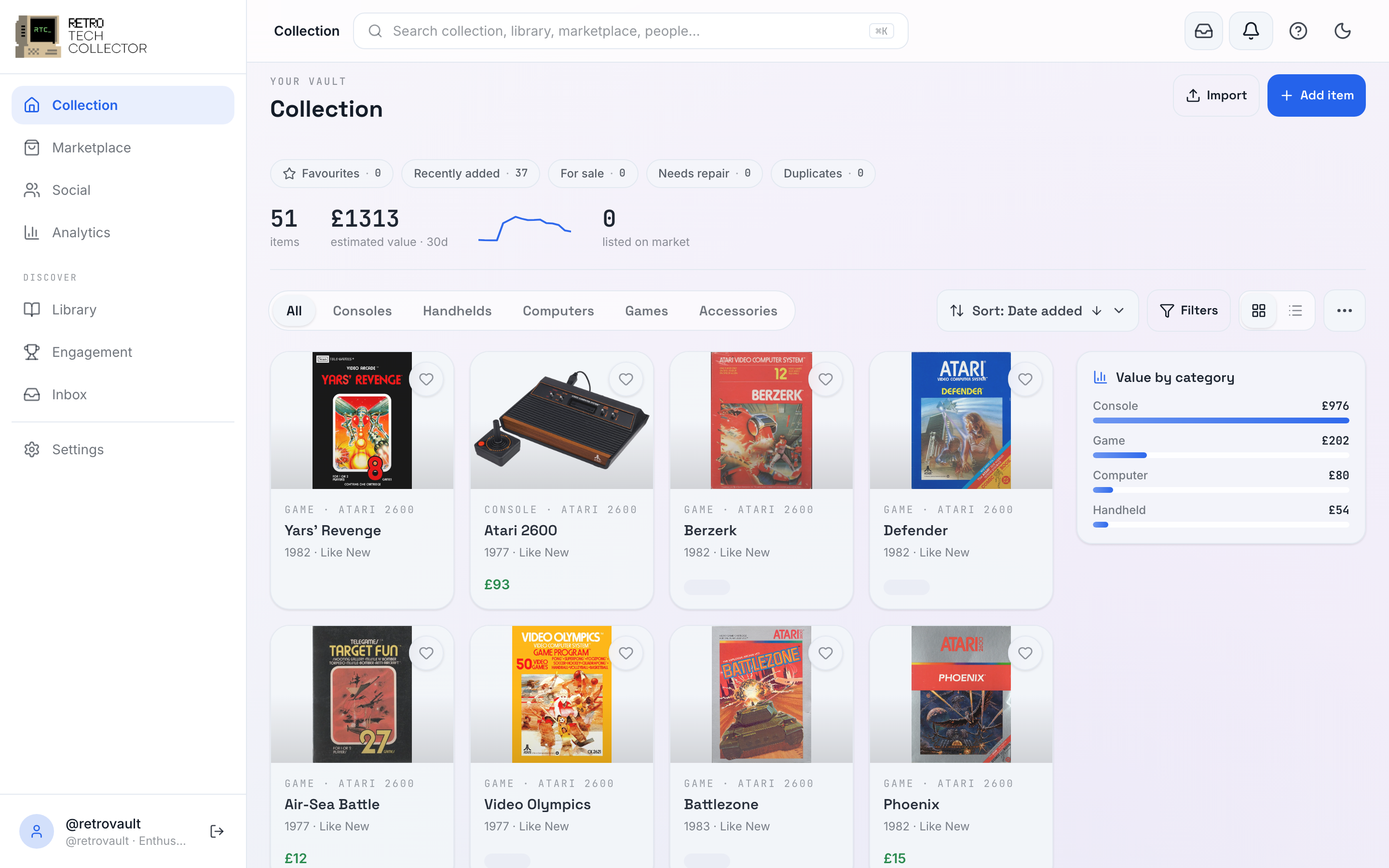
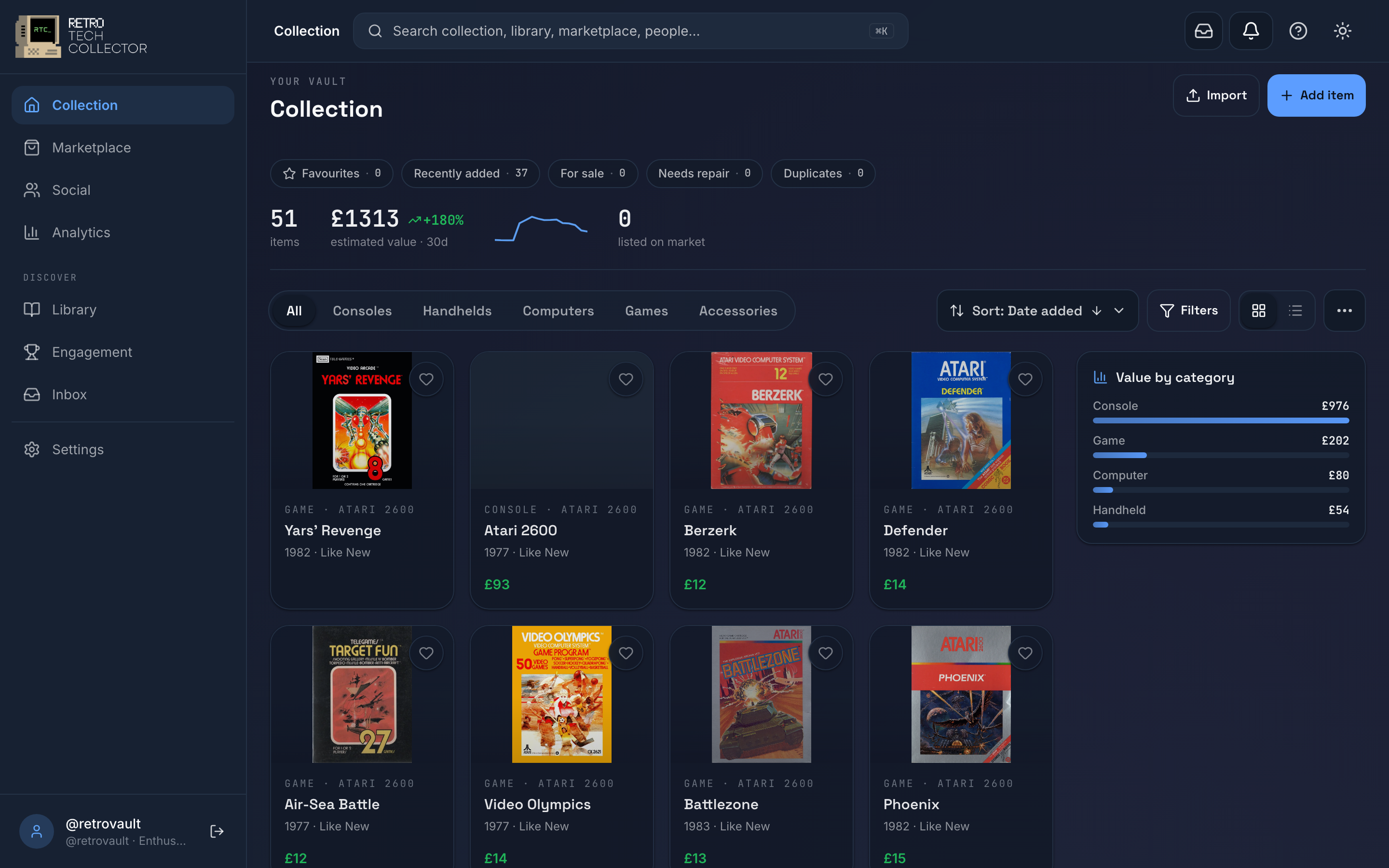
Your collection. The Vault Dashboard lays everything out in a grid or list, with a stats rail, click-to-filter insights, sort, filter and search. Every plan, Hobbyist included, shows your items with their catalogue details and live per-item market values; tracking your whole collection's value over time is part of Analytics, which comes with Collector and above. More in Managing your collection.


The Library. Browse the master catalogue of 120,000+ items by platform and game, each with pre-filled specs and a shareable page. Keep a Want it wishlist of things you're after. See The Library.
Analytics. On Collector and above, the app tracks your collection's value over time with breakdowns by category, manufacturer and condition, plus top movers and per-item market alerts. See Analytics.
Where next
- Account setup — verify your email, choose a username, turn on 2FA and passkeys, and pick a plan.
- Adding items — every way to add: a photo, barcode, catalogue search and manual entry.
- Managing your collection — condition, grading, value, storage and views.
- Plans and billing — what each tier includes and how the free trial works.