The Library
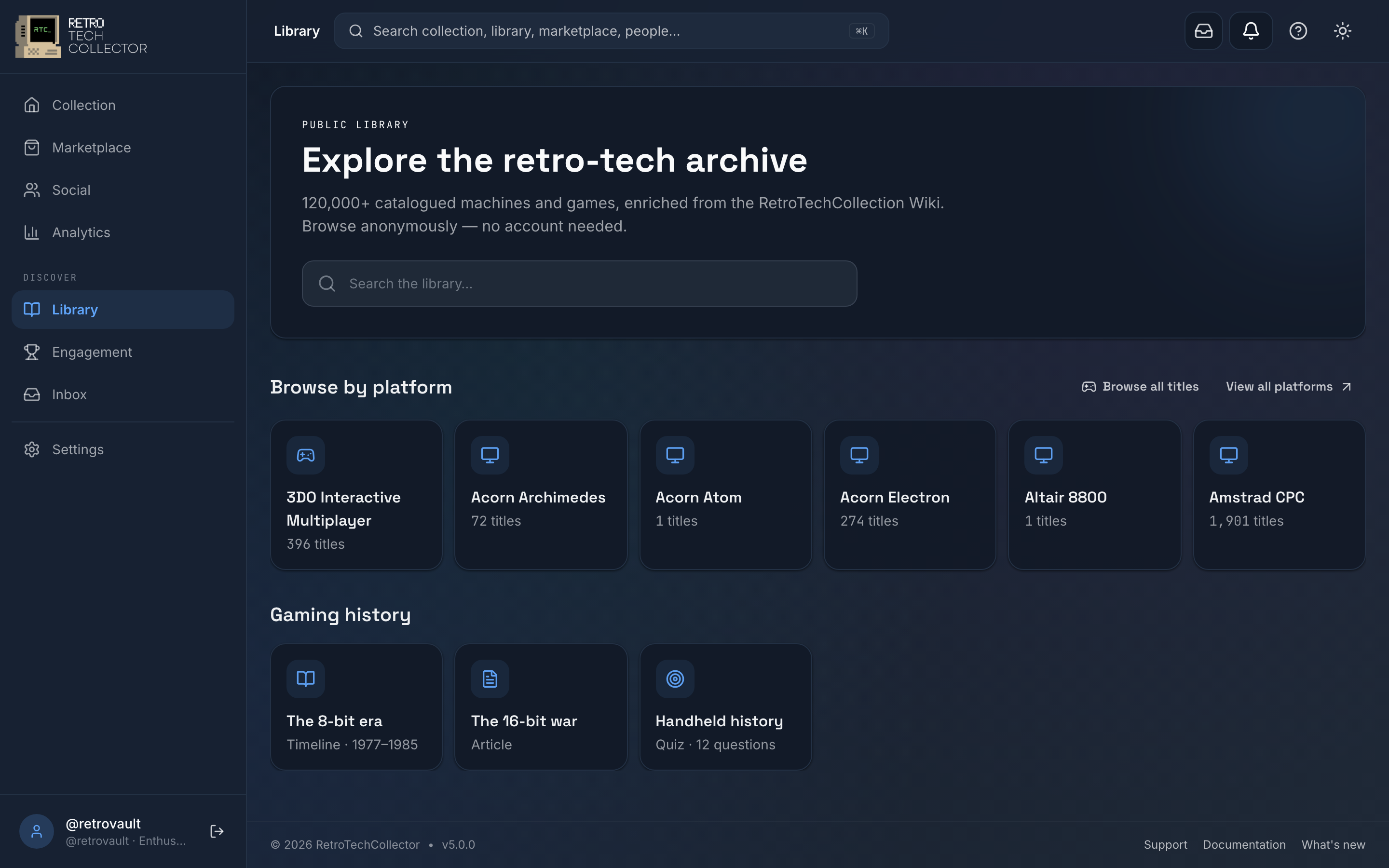
The Library is RetroTechCollector's master catalogue — over 120,000 items of retro tech with specs already filled in, so you rarely have to type anything when you add to your own collection. Anyone can browse it, and you pull from it whenever you add an item.
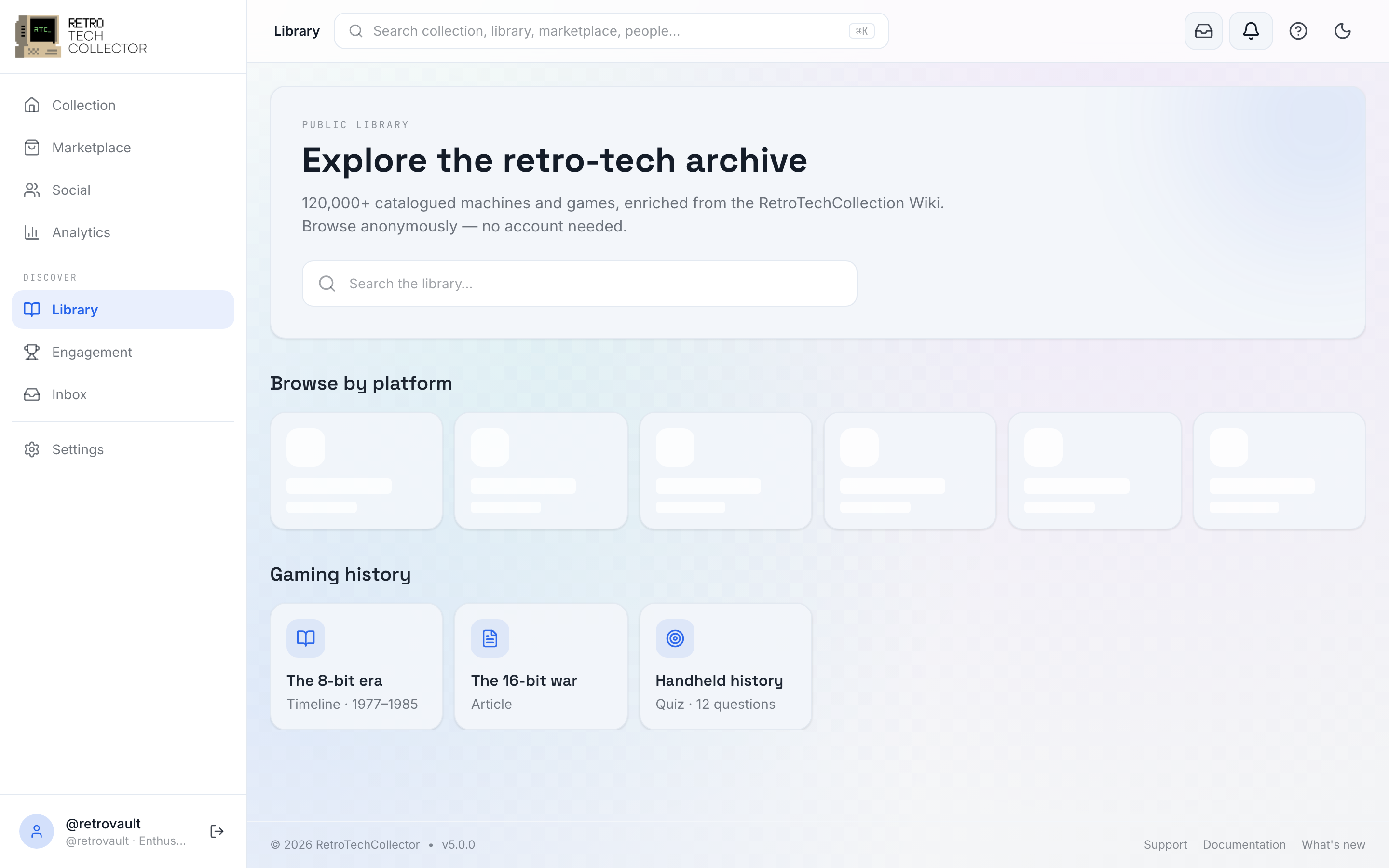
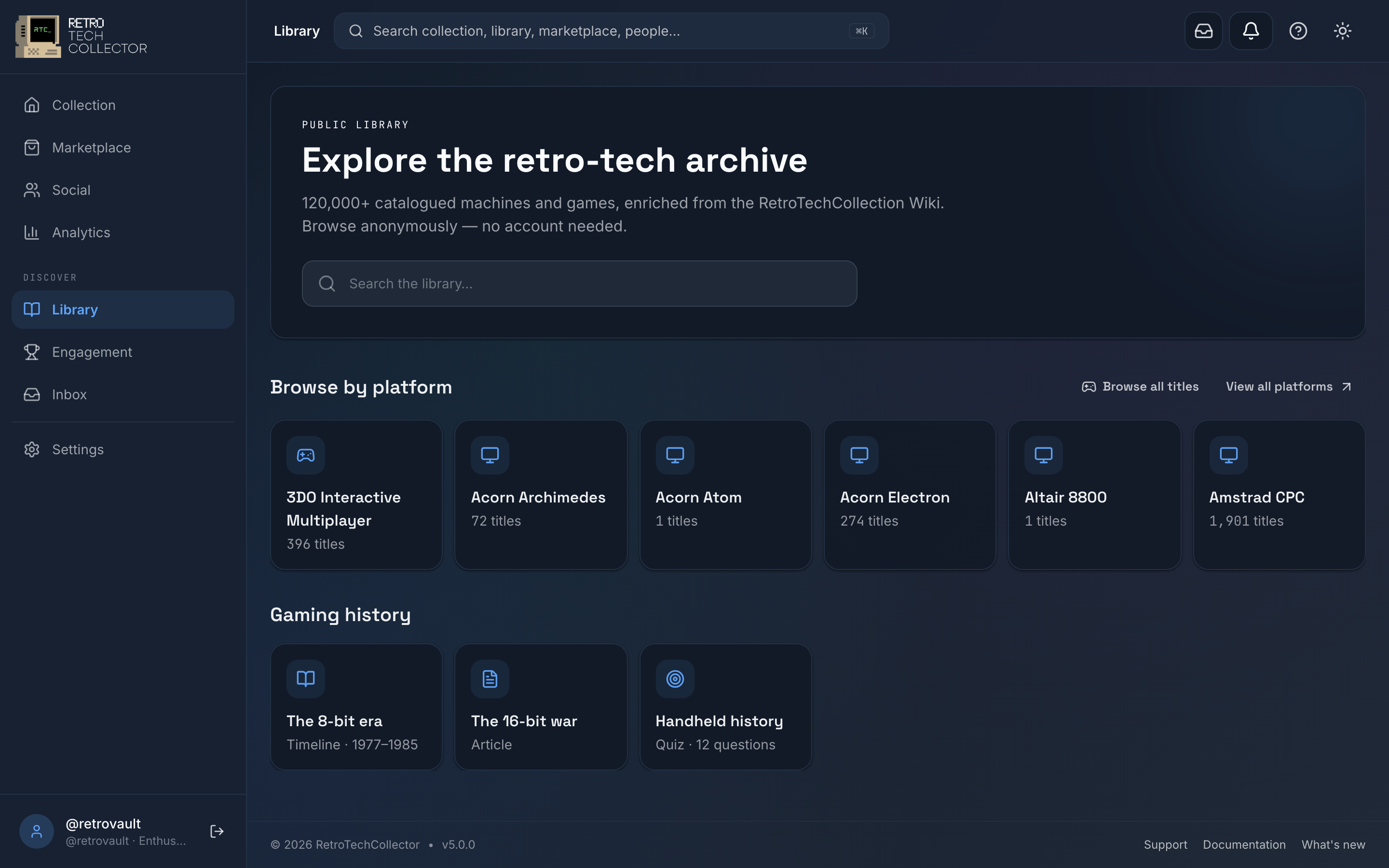
What's in the Library
Every Library entry is a master item: a single, shared record for a specific console, computer, handheld, game or accessory. Each record is enriched from a mix of trusted retro databases — IGDB, Giant Bomb, Wikipedia, RTC Wiki and PriceCharting — so a master item arrives with its specs, artwork, release information and market prices already in place.
Because the catalogue is shared across everyone, you're not maintaining these details yourself. When you add an item from the Library, you inherit all of that pre-filled data, then layer your own copy-specific details on top — condition, grade, photos, purchase price and so on. Those personal details are covered in Managing your collection.
The four tabs
The Library is split into four tabs:
- Platforms — every console, computer and handheld, laid out as cards. Pick one to see the hardware and software catalogued for it.
- Games — browse the software catalogue directly, across all platforms.
- Wishlist — your Want-it list of items you're hunting for (see below).
- History — Interactive History: timelines, articles and quizzes. This tab is members-only; see History.
Browse by platform
From the Platforms tab, pick a machine and you'll see every catalogued item for it — both the hardware and the games.
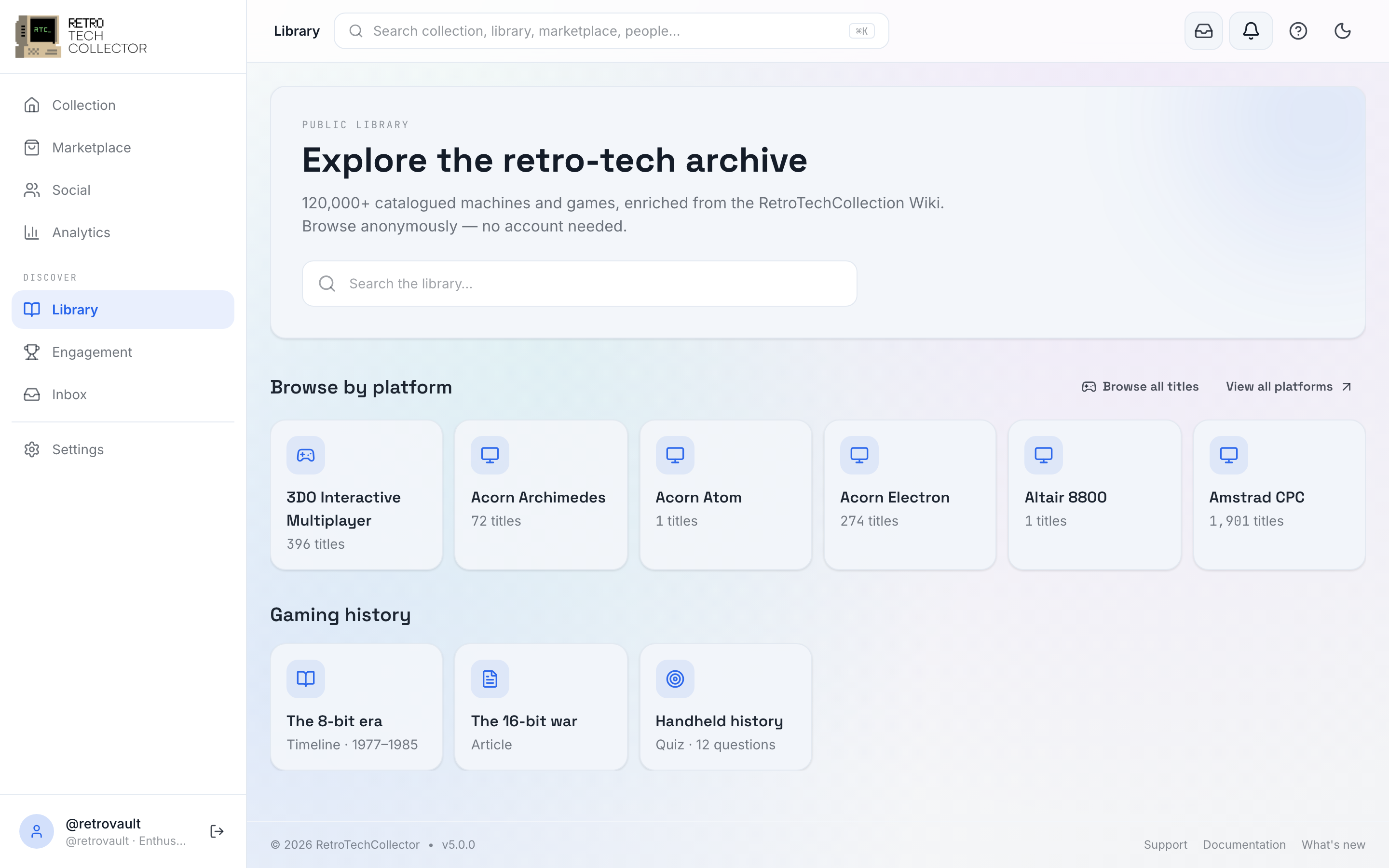

From there you can drill into individual games and hardware. Each item opens its own page with the enriched specs, artwork and market prices.
Browse anonymously
You don't need an account to look around the Library — browsing the Platforms and Games tabs, opening an item and reading its specs and prices are all open to everyone.
Actions that change your data prompt you to sign in at the moment you try them. Adding an item to your collection, and adding to your Want-it wishlist, both ask you to sign in or sign up first.
Autofill when you add an item
The Library is what makes adding fast. When you add to your collection, search the catalogue and pick the matching master item — its specs, artwork and release details are filled in for you, and you just confirm your copy's condition and photos.
- On the Add screen, choose Search catalogue.
- Find and pick the matching master item from the results.
- RetroTechCollector pre-fills the specs and artwork from that record.
- Add your own details — condition, grade, photos, purchase price, storage location.
- Save it to your collection.


Searching the catalogue is one of four ways to add an item, alongside Snap a photo, Scan a barcode and Enter manually. For the full set of options and when to use each, see Adding items.
The Want-it wishlist
Found something in the Library you don't own yet? Add it to your Want-it wishlist to keep track of what you're hunting for. Your wishlist also powers alerts — when a matching item turns up on the marketplace, you can be notified rather than checking by hand.
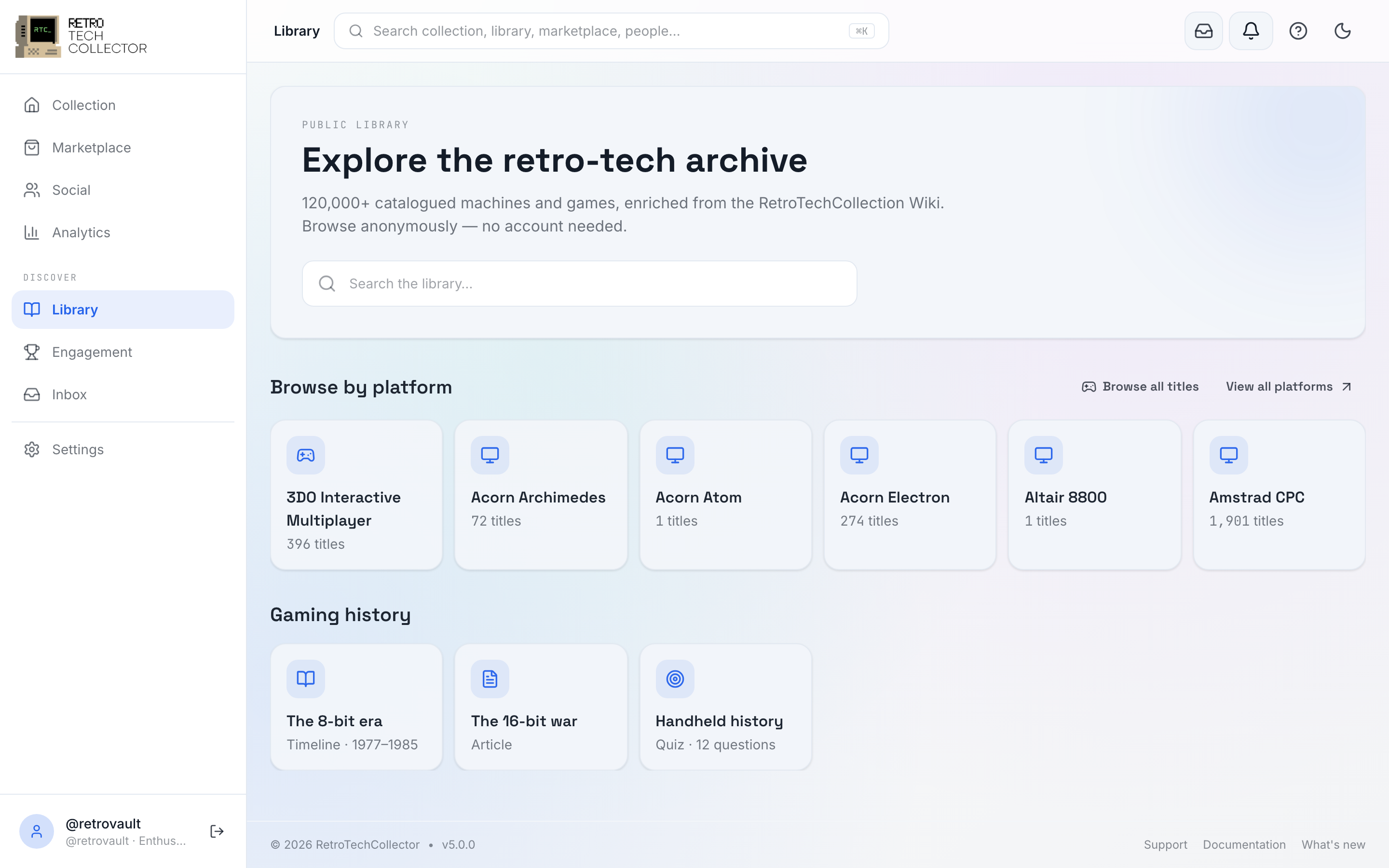
Browsing is open to everyone, but the wishlist is saved to your account — tapping Want it as a guest prompts you to sign in first.
Where to go next
| If you want to… | Go to |
|---|---|
| See what an item is worth and where prices come from | Prices & values |
| Add items quickly with AI, a barcode or the catalogue | Adding items |
| Manage condition, grade, photos and value on your own copies | Managing your collection |
| Read up on the platforms behind the catalogue | History |