Security & sign-in
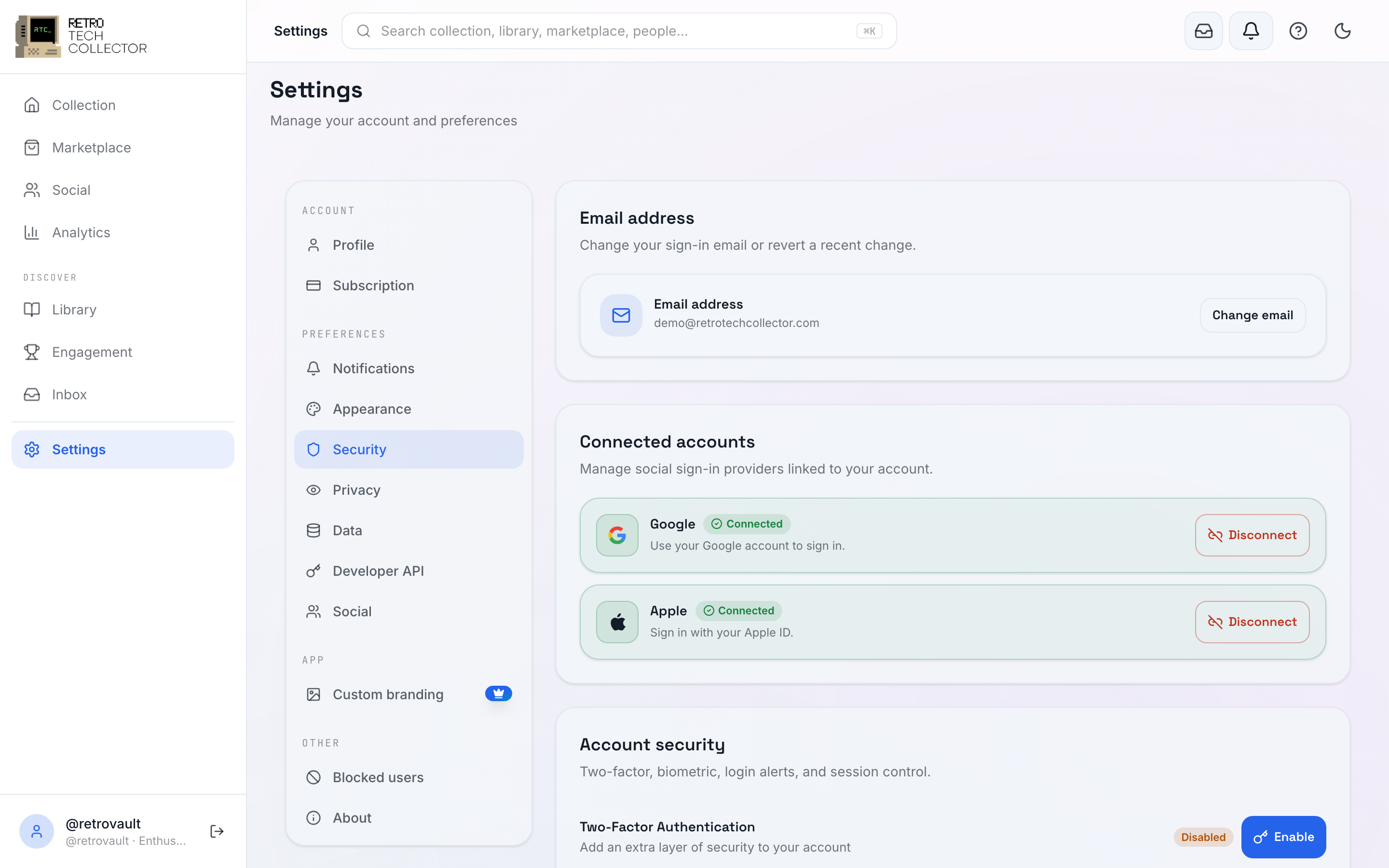
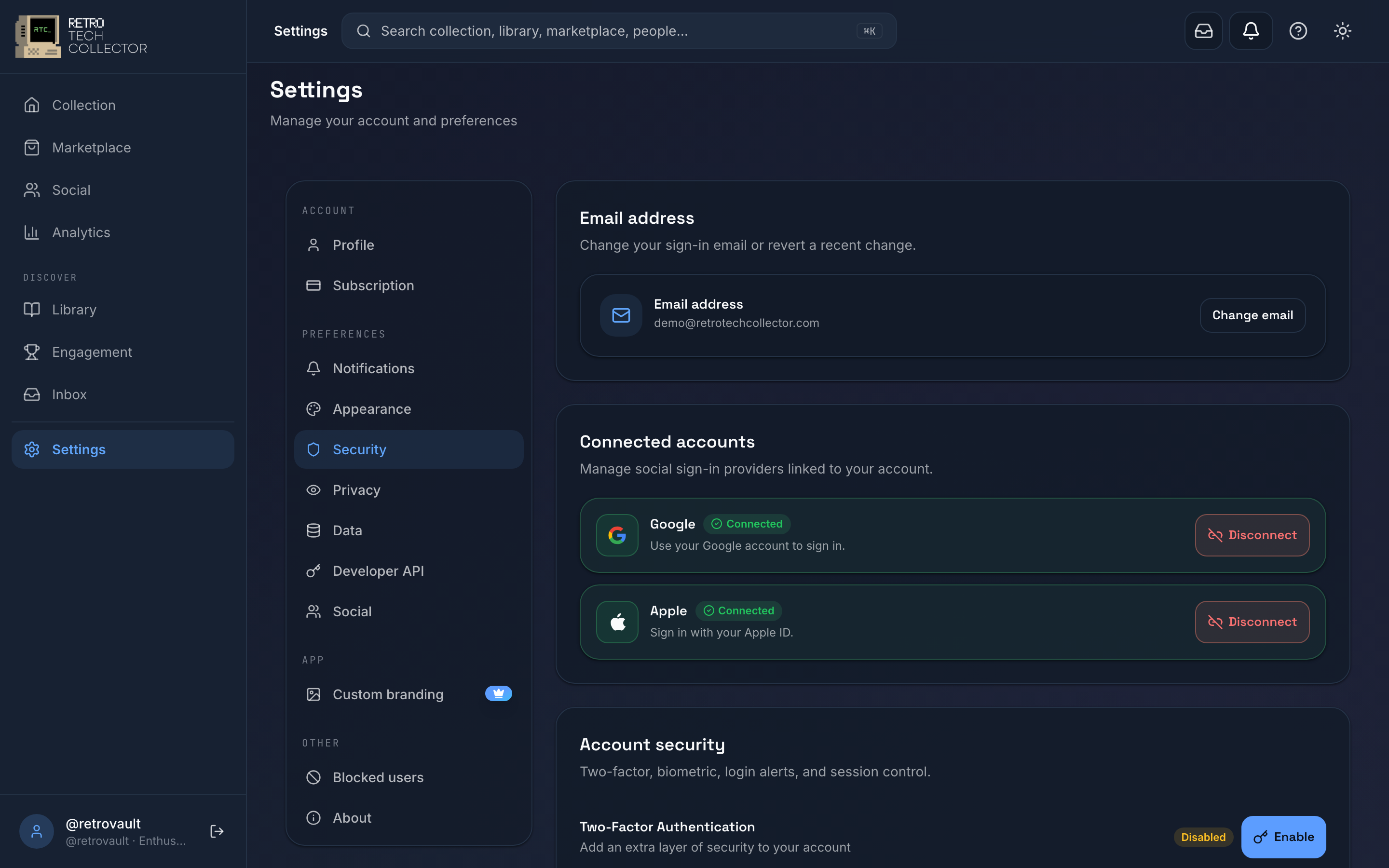
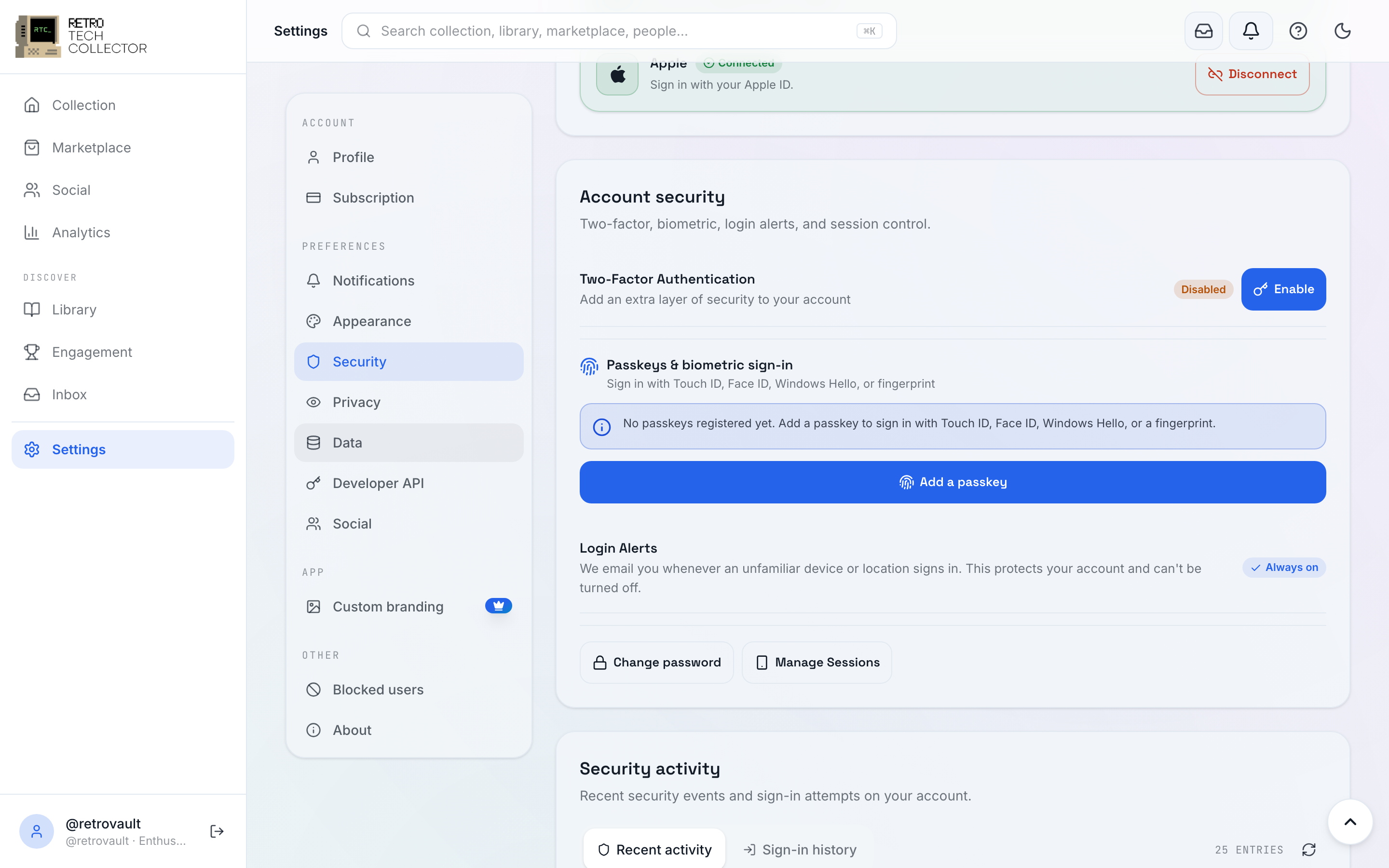
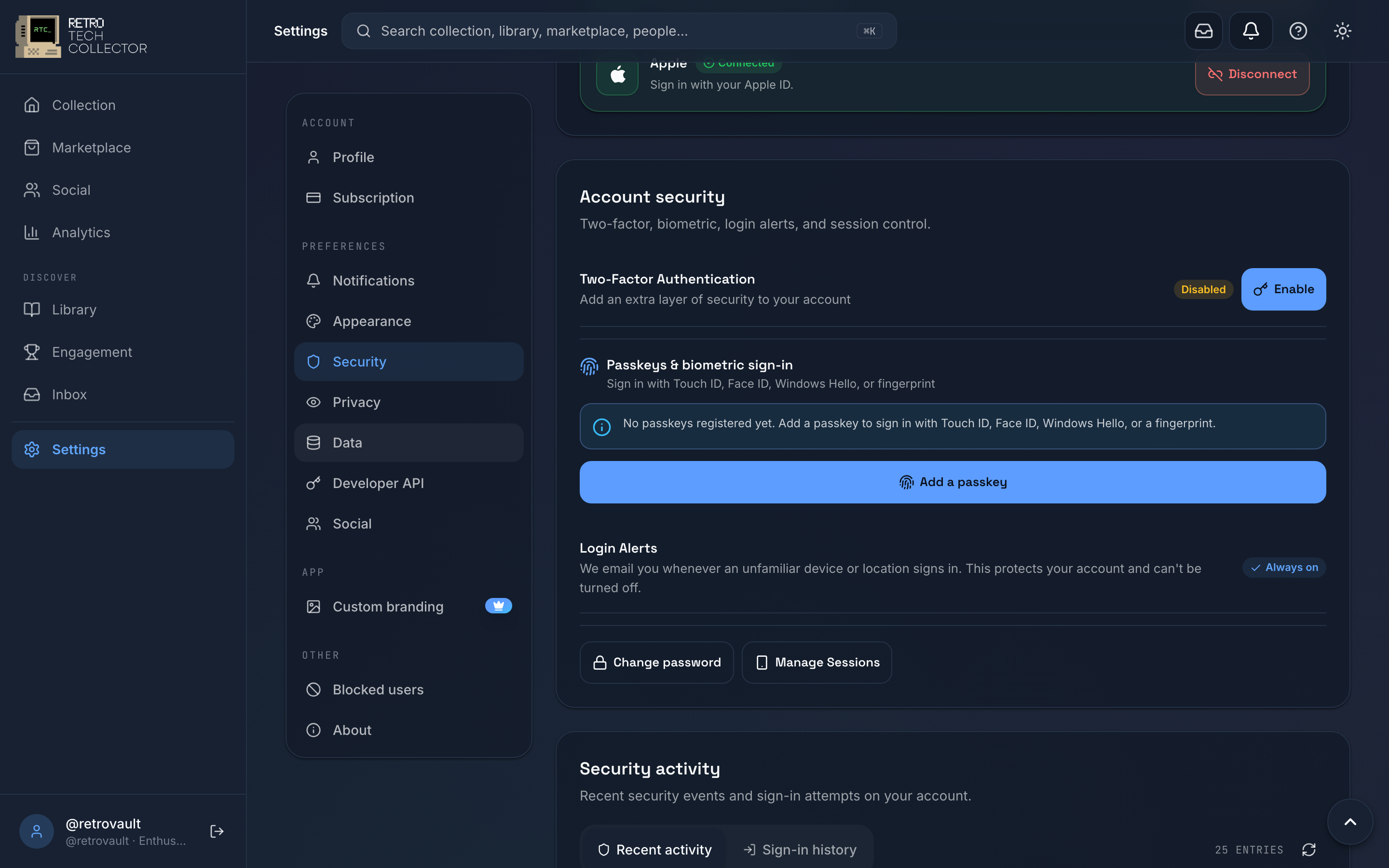
Your account holds your collection, its value and — if you sell — your payouts, so it's worth locking down. Everything you need lives under Settings → Security: your password, two-factor authentication, passkeys and biometric unlock, and the devices currently signed in.
How you sign in
You can sign in with an email and password, with Google, or with Apple (Apple Sign-In on iOS). If you registered with email, your password is stored hashed — it's never held in plain text. You don't have to pick just one method; add a passkey or 2FA on top for stronger protection.
Password and reset
Your password must be at least 10 characters. When you set or change it, RetroTechCollector checks it against a database of known breached passwords and warns you if it appears there, so you can pick something safer.
To change it, go to Settings → Security → Change password, enter your current password, then the new one twice.
If you've forgotten it:
- On the sign-in screen, tap Forgot password?
- Enter your account email and submit.
- Open the reset link we email you.
- Set a new password and sign back in.
If you signed up with Google or Apple and never set a password, use Continue with Google or Continue with Apple instead — there's no password to reset.
Two-factor authentication (2FA)
Two-factor adds a second step at sign-in: after your password, you enter a 6-digit code from an authenticator app. Even if someone learns your password, they can't get in without your phone.
To turn it on:
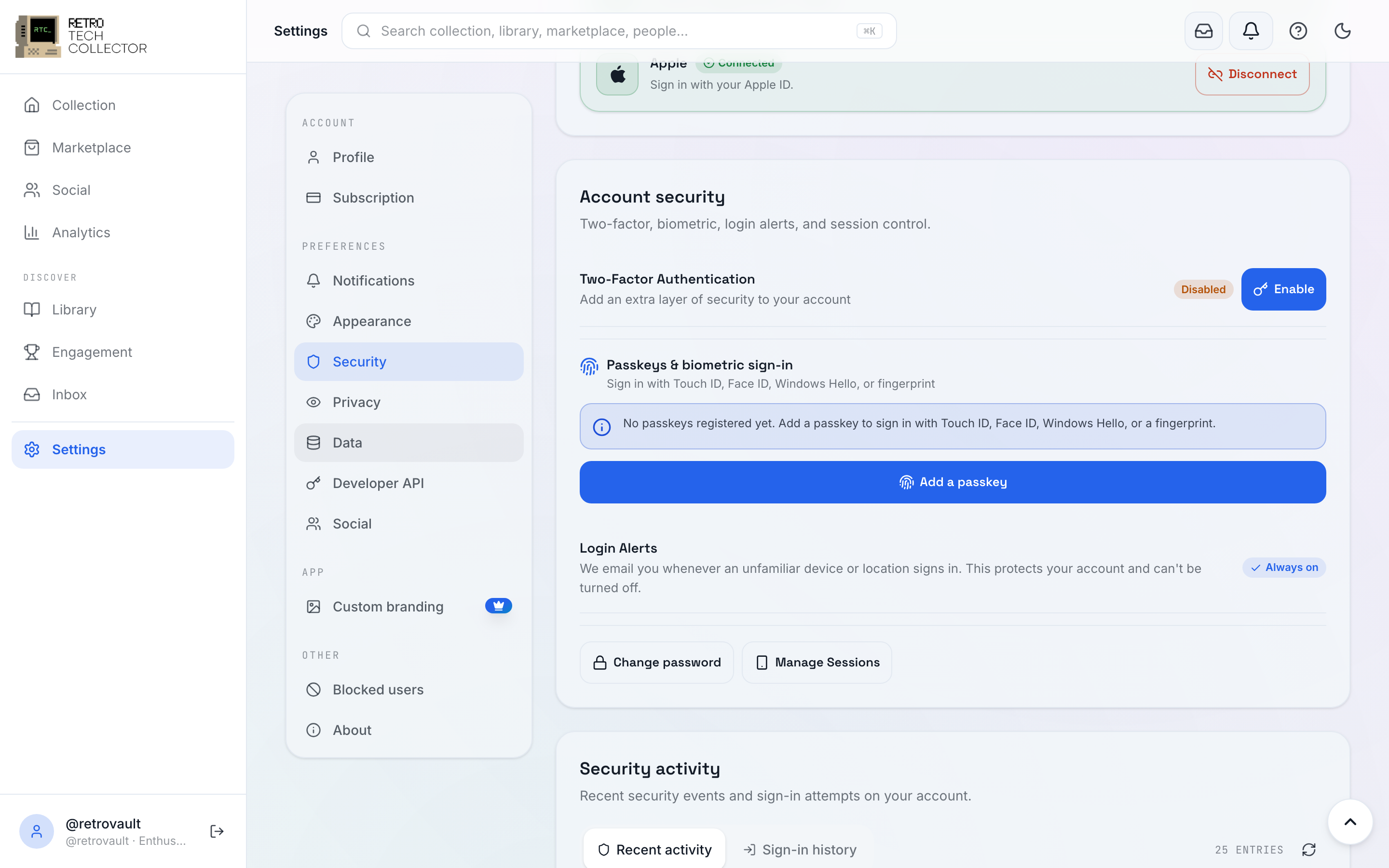
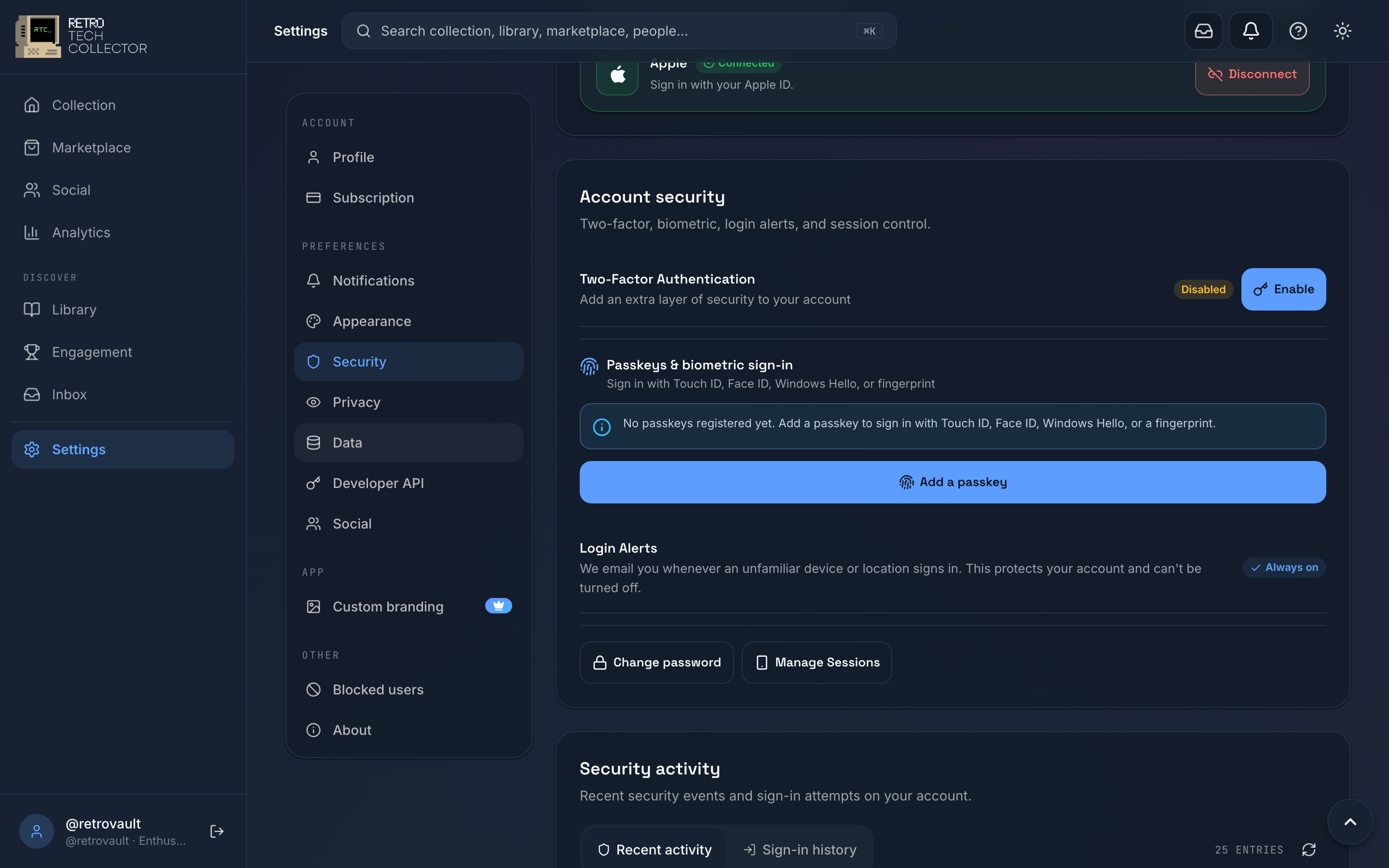
- Go to Settings → Security → Two-factor authentication and tap Enable.
- Scan the QR code with an authenticator app (TOTP — for example Google Authenticator, Authy or 1Password).
- Enter the 6-digit code your app shows to confirm.
- Save your backup codes somewhere safe.
After this, you'll be asked for a code from your app each time you sign in.
Backup codes are single-use codes that let you sign in if you lose your phone or authenticator app. Store them somewhere separate from your phone — a password manager or a printed copy. Without them, losing your authenticator means contacting [email protected] to recover access.
Passkeys and biometric unlock
A passkey replaces your password with the security built into your device — your phone's fingerprint or face unlock, or your computer's screen lock. There's nothing to remember and nothing to phish.
To add one on the web, go to Settings → Security → Passkeys → Add a passkey and follow your device's prompt (Face ID, Touch ID, fingerprint, Windows Hello or a hardware key). Next time, choose Sign in with a passkey and authenticate with your device.
On the mobile apps, once you're signed in you can turn on biometric unlock and reopen the app with Face ID, Touch ID or a fingerprint instead of typing anything.
Here's how the options compare:
| Method | What you need | Best for |
|---|---|---|
| Password | A password you remember (10+ characters) | Any device — the fallback for everything |
| 2FA (TOTP) | Password + an authenticator app | A strong second step on top of a password |
| Passkey (WebAuthn) | A device with a screen lock or biometric | Fast, phishing-resistant sign-in on the web |
| Biometric unlock (mobile) | The Android or iOS app + fingerprint/face | Quick day-to-day reopening on your phone |
Add a passkey or biometric unlock for quick sign-in and keep 2FA enabled as a backup. The more methods you set up, the less likely a lost phone or forgotten password locks you out.
Email verification
We ask you to verify your email after you register. It confirms the address is yours and is needed for password resets and important account emails.
If you haven't verified yet, you'll see a prompt — tap Resend verification email, then open the link we send. See account setup for the full first-run walkthrough.
Active sessions and devices
Every place you're signed in — each browser and phone — shows up under Settings → Security → Active sessions, with the device and when it was last active.
If you spot a device you don't recognise, or you signed in on a shared or lost device:
- Open Settings → Security → Active sessions.
- Find the device in the list.
- Tap Sign out next to it to end that session remotely.
Use Sign out everywhere if you think your account has been accessed, then change your password and review your 2FA and passkeys.
For controlling what others can see about you, head to privacy & data. For plan and payout settings, see plans & billing.