Apps & offline
RetroTechCollector runs in any modern browser, installs as an app on your phone or desktop, and keeps working when you lose signal. This page covers where to get it, how to install it, and how offline sync behaves.


Where to get it
| Platform | How to get it | Status |
|---|---|---|
| Web | Open retrotechcollector.app in any modern browser | Available |
| Android | Google Play | Available |
| iOS | App Store | Available |
It's the same account everywhere — sign in once and your collection, settings and messages follow you across devices. The web app is the quickest way to start: there's nothing to install, and you can add your first item straight away.
Install as a PWA
RetroTechCollector is a Progressive Web App, so you can install it from the browser and get an app icon, a full-screen window and offline support — no app store required. The exact step depends on your browser:
- On Chrome / Edge (desktop), open retrotechcollector.app and click the install icon in the address bar, then Install.
- On Chrome (Android), tap the browser menu and choose Install app (or Add to Home screen).
- On Safari (iOS/iPadOS), tap the Share button, then Add to Home Screen.
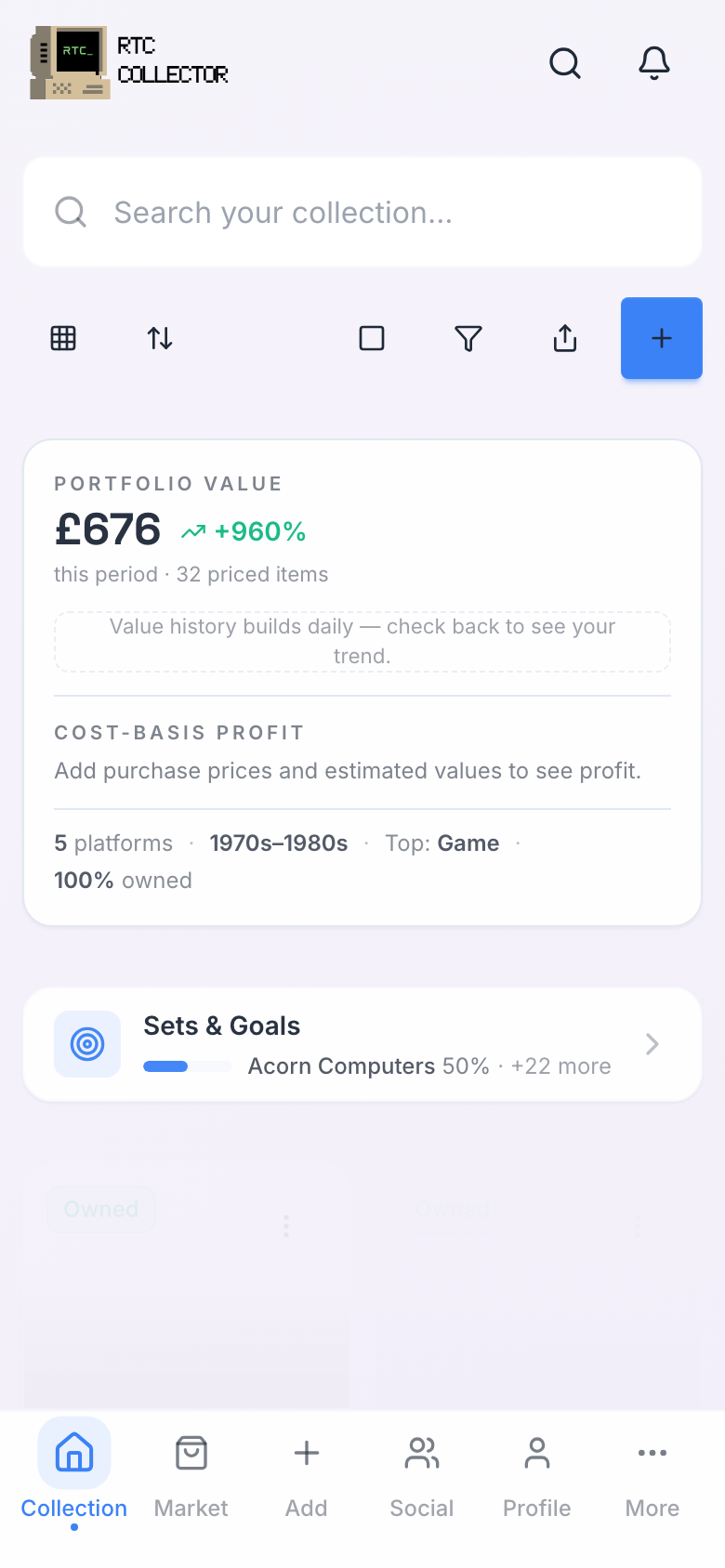
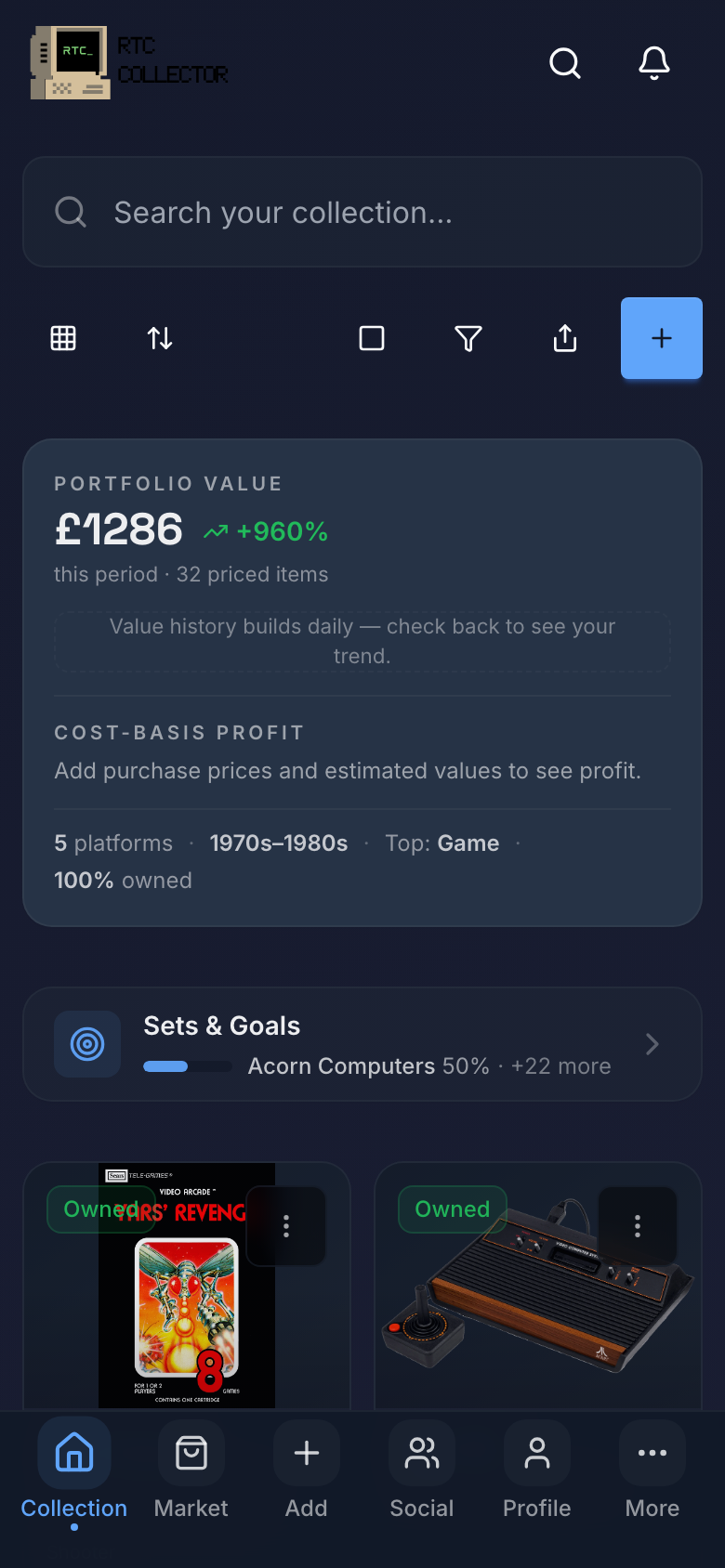
The Google Play and App Store apps add native push notifications, biometric unlock and camera handling. The PWA is the quickest installed experience on desktop and works well on any platform — pick whichever suits you.
Offline support and sync
You don't need a connection to use your collection. The app caches what you've already opened, so you can browse items, read details and keep working when you're at a fair, in a loft, or anywhere the signal drops.
Changes you make offline — adding items, editing details, sending messages — are held in an on-device queue (IndexedDB). When you reconnect, the app replays that queue to the server automatically, so nothing is lost.
Live market values, the Library catalogue, the marketplace and the social feed pull fresh data from the server, so they need you to be online. Your own collection and any queued changes work offline.
The five-tab mobile layout
On phones, RetroTechCollector uses a bottom bar with five tabs so the things you reach for most are always one tap away. From left to right:
- Collection — your catalogued items, with views, search, filters and the Vault Dashboard.
- Marketplace — browse, buy, sell and trade on the marketplace.
- Add (+) — the four-method add picker: snap a photo, scan a barcode, search the catalogue or enter manually. See adding items.
- Social — the community feed, follows, profiles and posts.
- You — your profile, settings, plan and account.
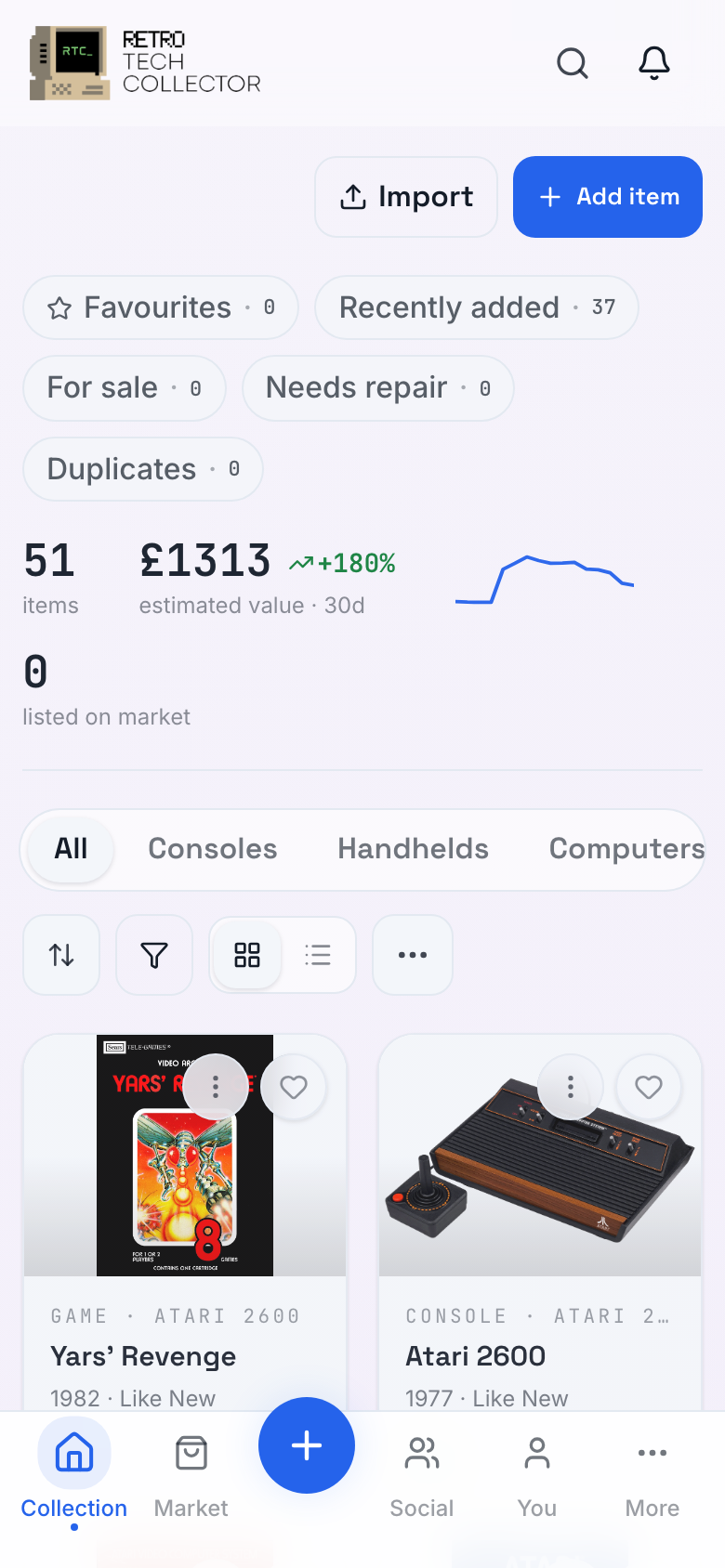
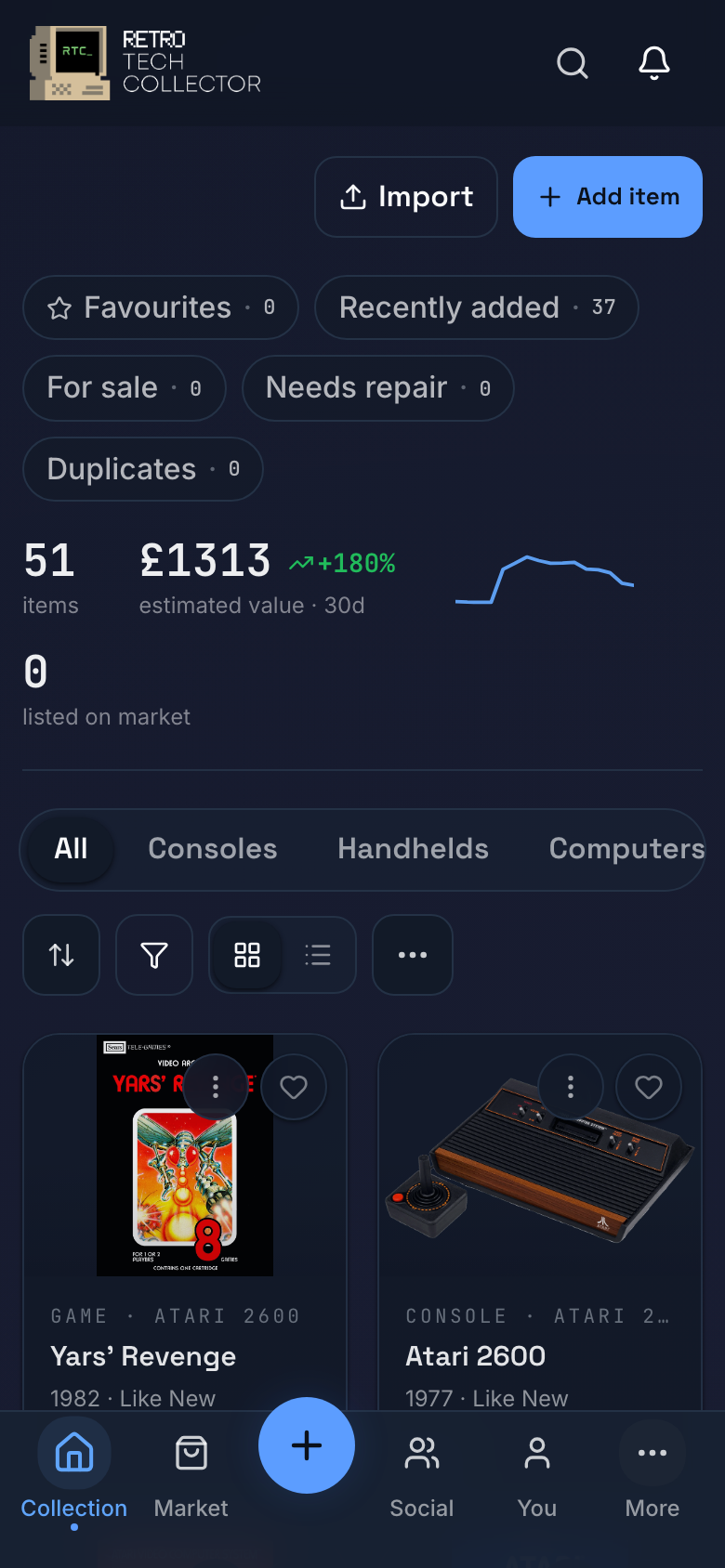
Everything that doesn't fit those five tabs — the Library, analytics, the Engagement Hub, the Inbox, RTC Wrapped and more — lives in the More sheet, opened from the You tab.
On the web, the same areas live in the top navigation and you can jump anywhere with the command palette (⌘K / Ctrl+K) — see preferences.