Preferences
RetroTechCollector adapts to how you like to work — the currency your values are shown in, how the app looks, and how you move around it. This page covers display currency, the appearance settings, the command palette, and the accessibility features built in.
Display currency
RetroTechCollector tracks value in multiple currencies and converts live, so your collection's worth, market prices and listings all read in the currency you choose. Set your display currency once (in Settings → Profile) and it carries across the collection value panel, per-item values, the Library and analytics.
Billing is handled separately: web plans are billed in GBP via Stripe, and in-app purchases are charged in your App Store or Google Play currency. Your display currency changes how values are shown, not how you're charged — see plans & billing.
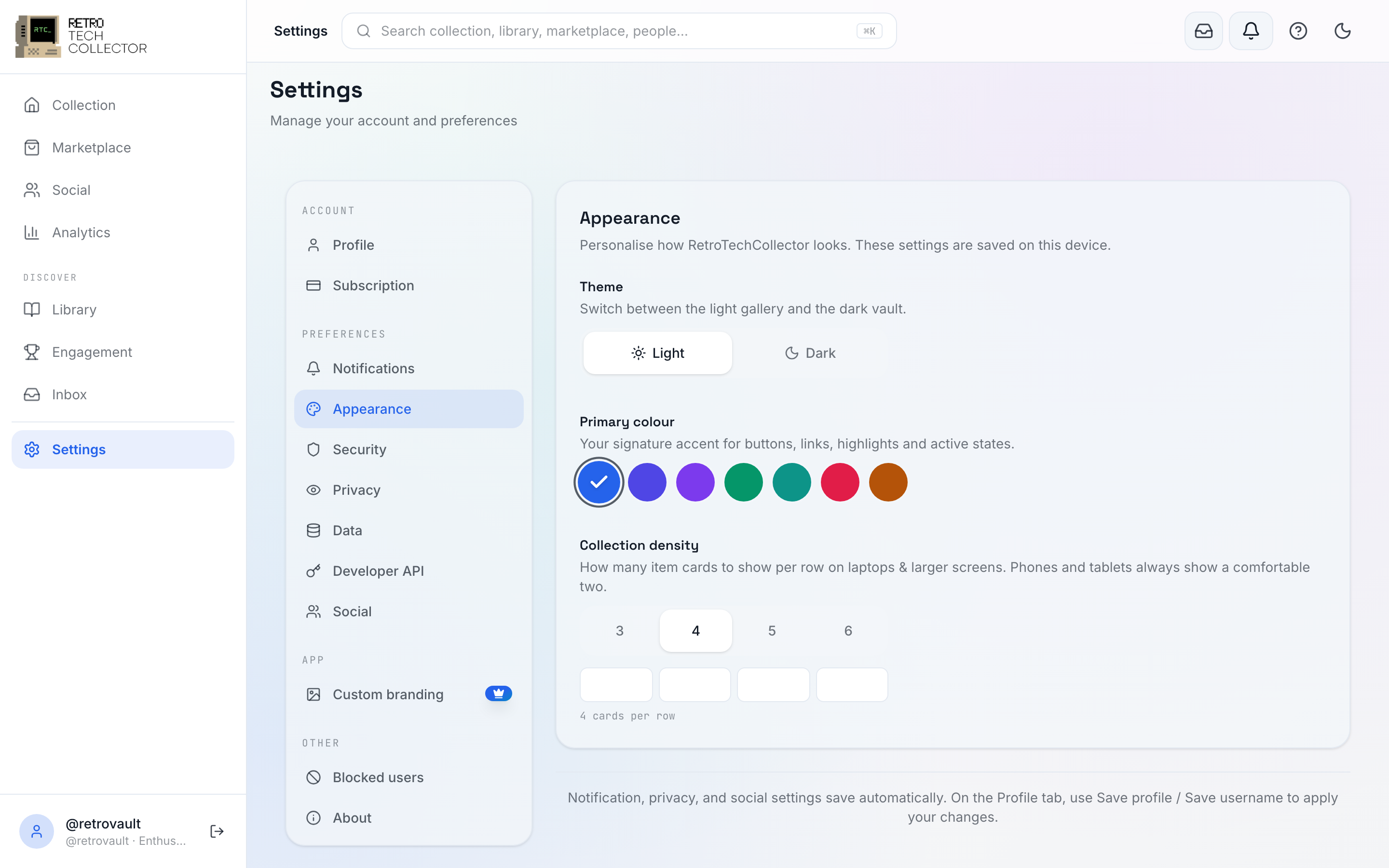
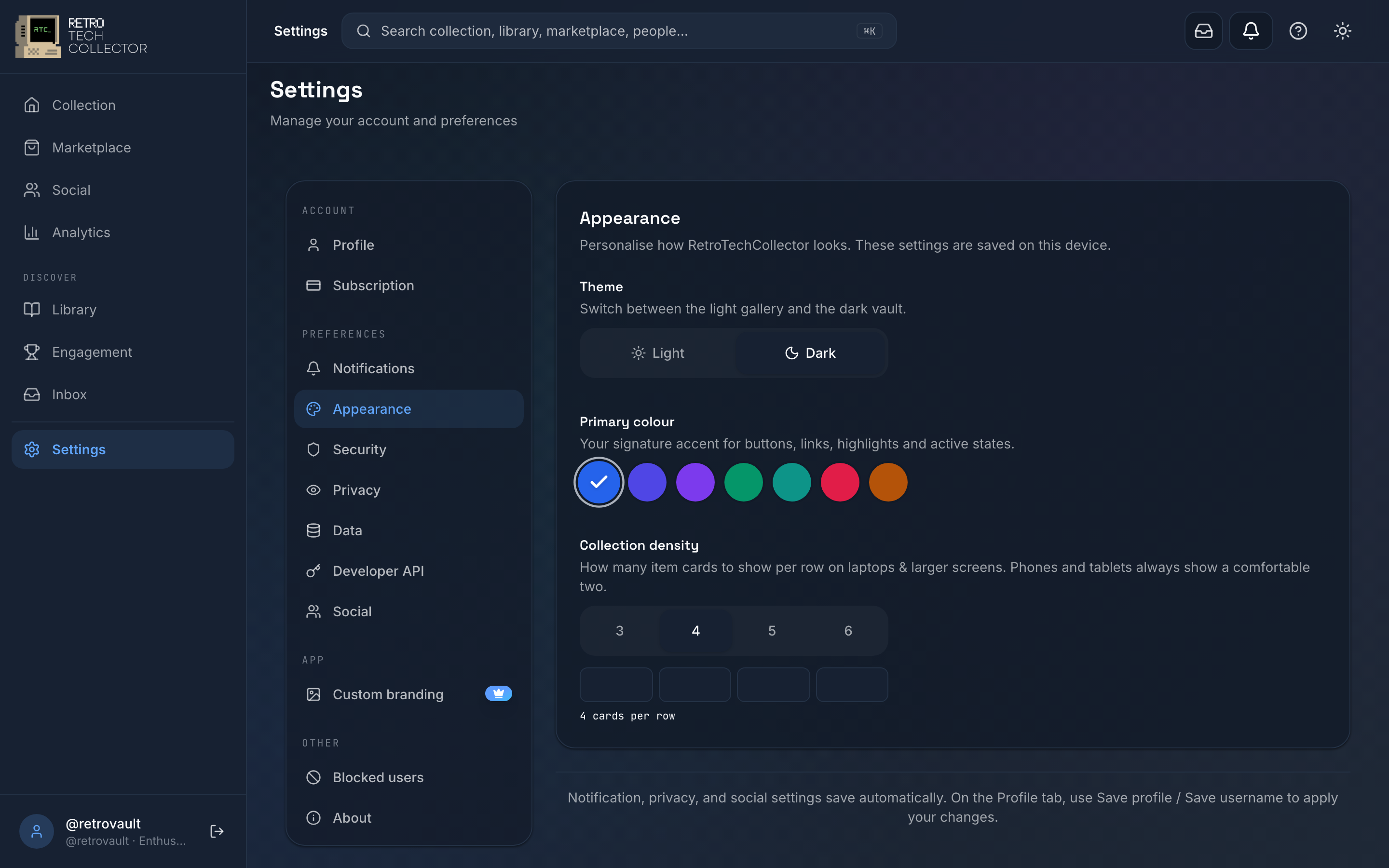
Appearance: theme, accent and density
Open Settings → Appearance to change how the app looks. Three things live here:
- Theme — choose Light or Dark to suit your screen and lighting.
- Accent colour — the highlight colour used for buttons, links and active states. The default is the "Collector's Vault" azure blue; pick another if you prefer.
- Collection density — how tightly items pack into your collection grid, so you can fit more on screen or give each item more room.
Your choices are remembered across the web app, the installable PWA and the mobile apps, so RetroTechCollector looks the same wherever you open it.
The command palette
The command palette lets you jump anywhere and run common actions without hunting through menus — handy once you know the app and want to move quickly.
Press ⌘K (Mac) or Ctrl+K (Windows, Linux, and Android or iOS with a keyboard) to open it, start typing, and pick a result with the arrow keys and Enter. Press Esc to close it.
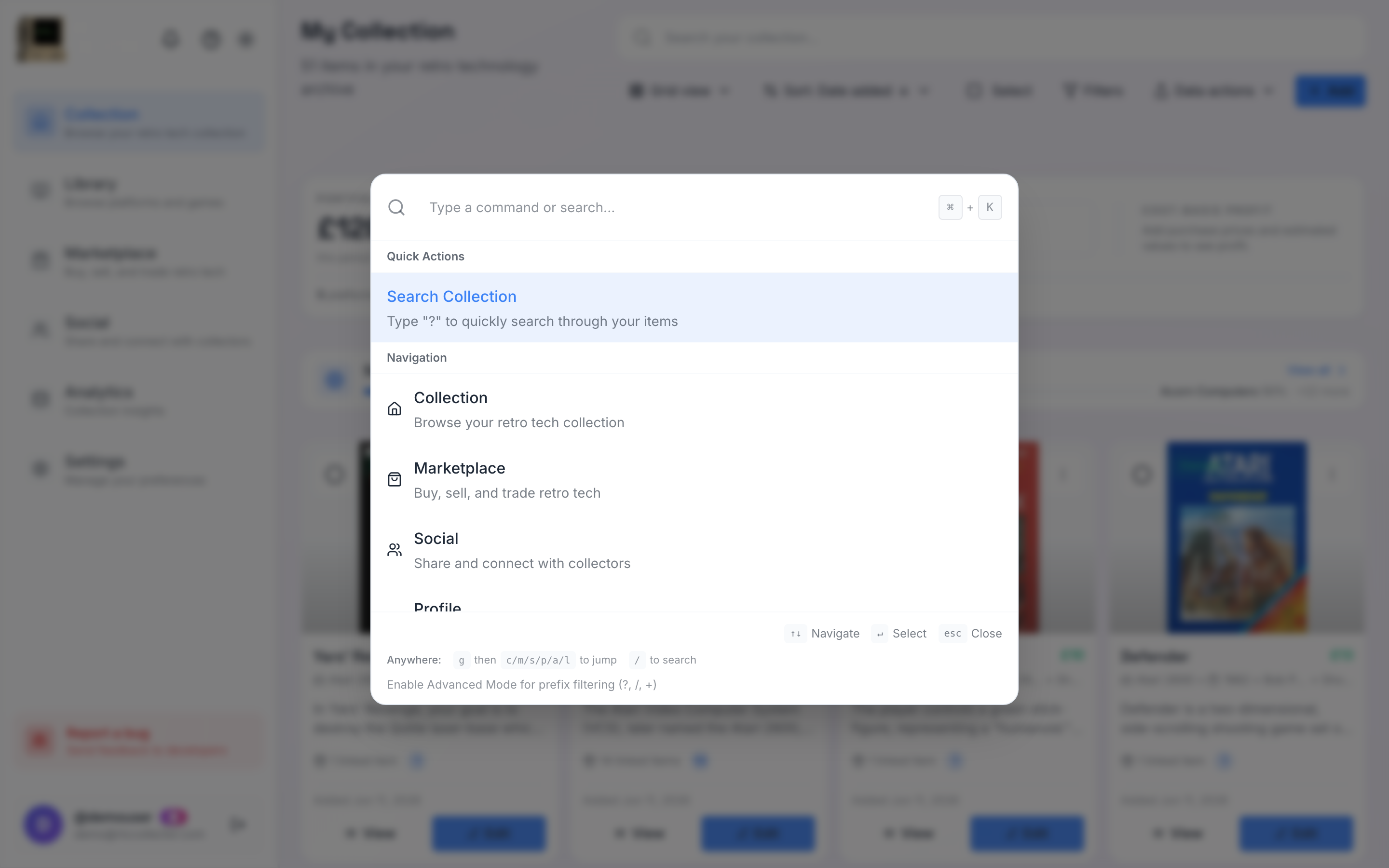
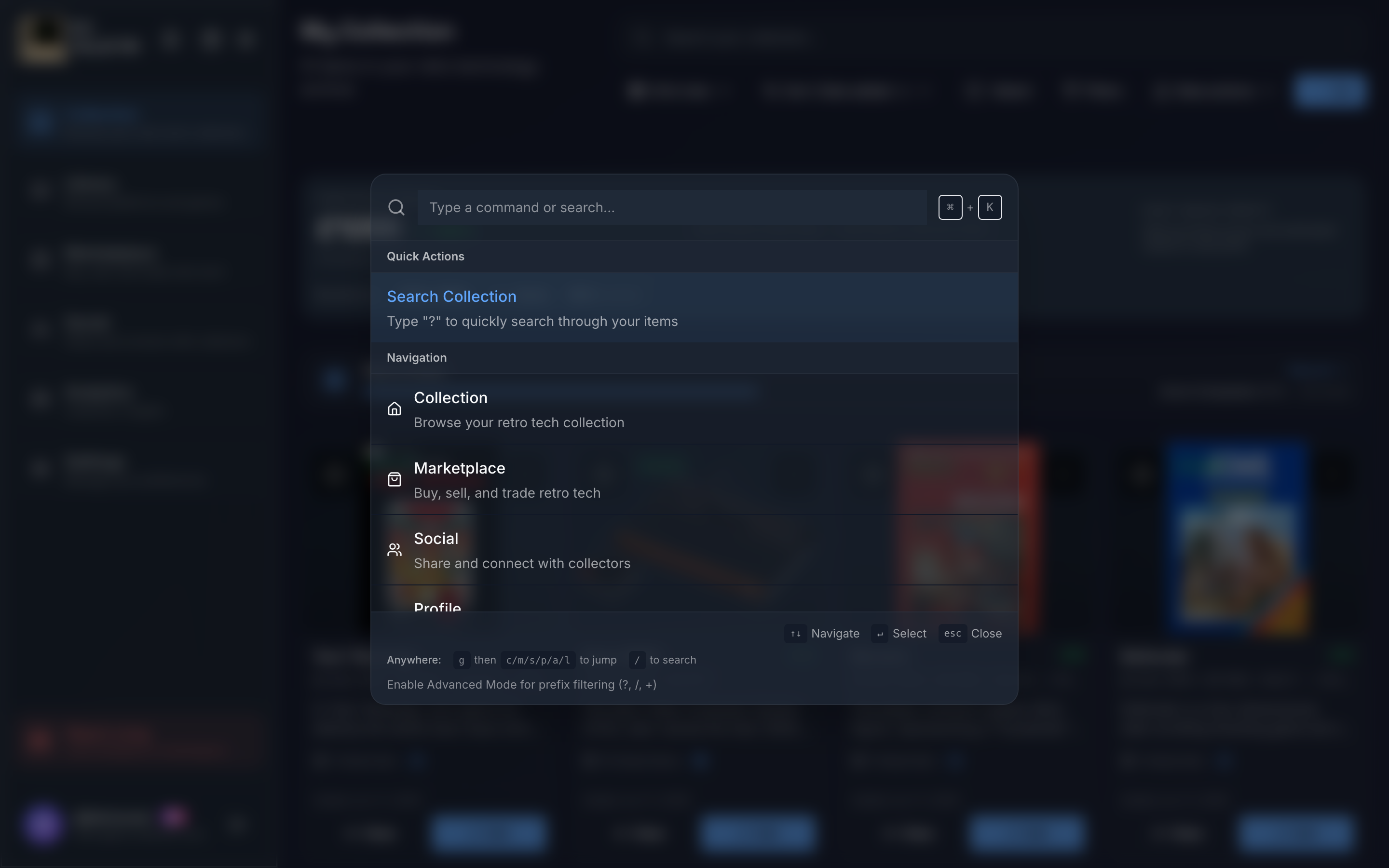
When you're not sure where a setting or page lives, open the command palette and type what you're after rather than digging through the menus.
Accessibility
RetroTechCollector is built to be usable however you navigate. The main accessibility features are:
| Feature | What it does |
|---|---|
| Keyboard | Move through the app and operate it without a mouse, including the command palette (⌘K / Ctrl+K). |
| Screen reader | Controls and content are labelled so screen readers can describe them. |
| Reduced motion | Honours your system "reduce motion" setting and tones down animations. |
Reduced motion follows your operating system or browser preference, so you don't set it twice — turn it on at the system level and the app respects it.
Related pages
- The apps — install the PWA, go offline, and use the mobile bottom bar.
- Notifications — choose what you're alerted about and how.
- Security — passwords, 2FA, passkeys and your active sessions.